
At a glance
Keep your phrase safe
- Write the twelve words on paper, in order, and keep the paper where only you can find it.
- Do not keep them in a photo, a screenshot, an email or a notes app that syncs to the cloud.
- Type them only into the SideSwap app, or another wallet app you trust, to restore. Never into a website.
- Nobody from SideSwap will ever ask for your phrase. Anyone who does is trying to take your funds.
See or check your phrase
Open Settings
Tap the gear on Home, then View my recovery phrase. The app asks for your PIN or biometrics first.Settings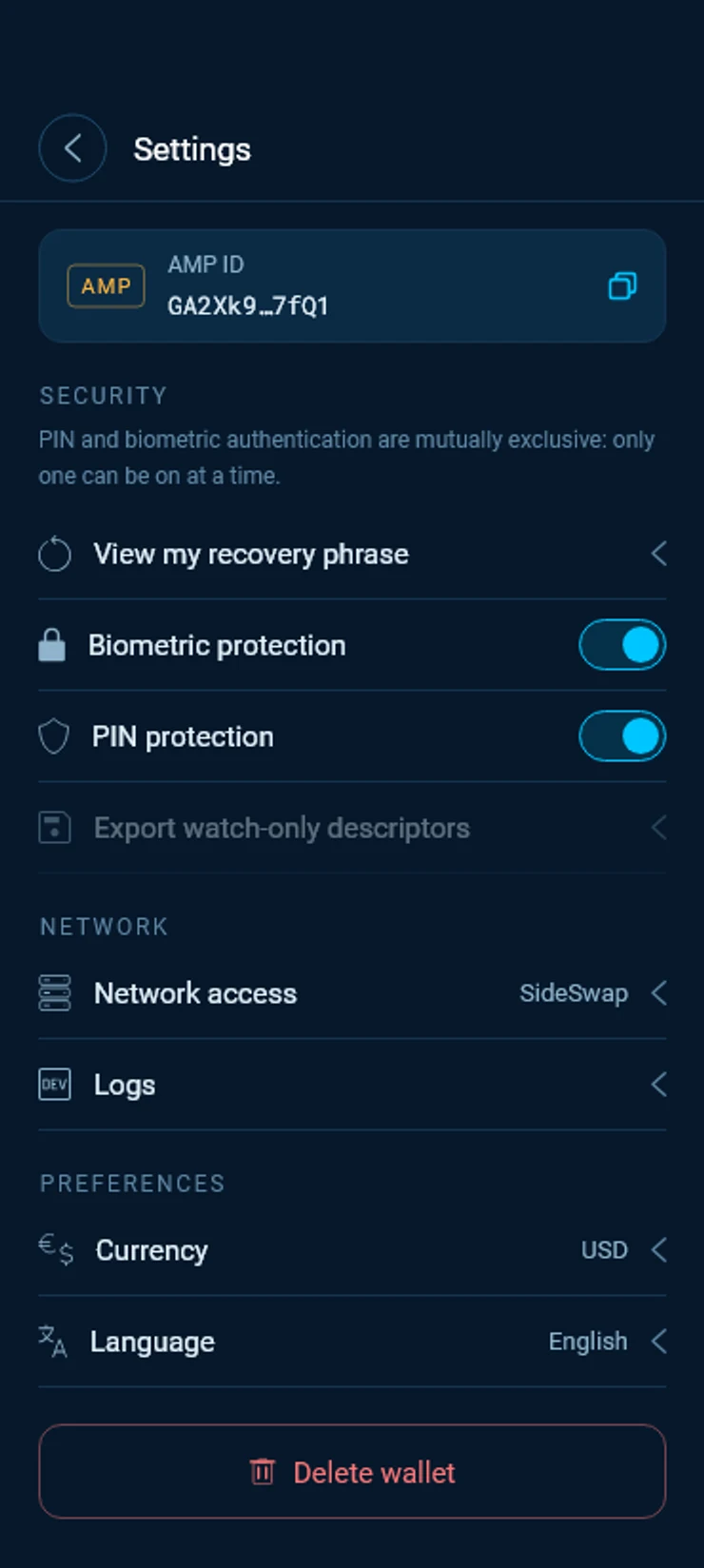
Compare it with your paper
Check every word and its number against your written copy. Tap Verify again to test yourself. The phrase never leaves this device and is in no backup SideSwap holds.Recovery phrase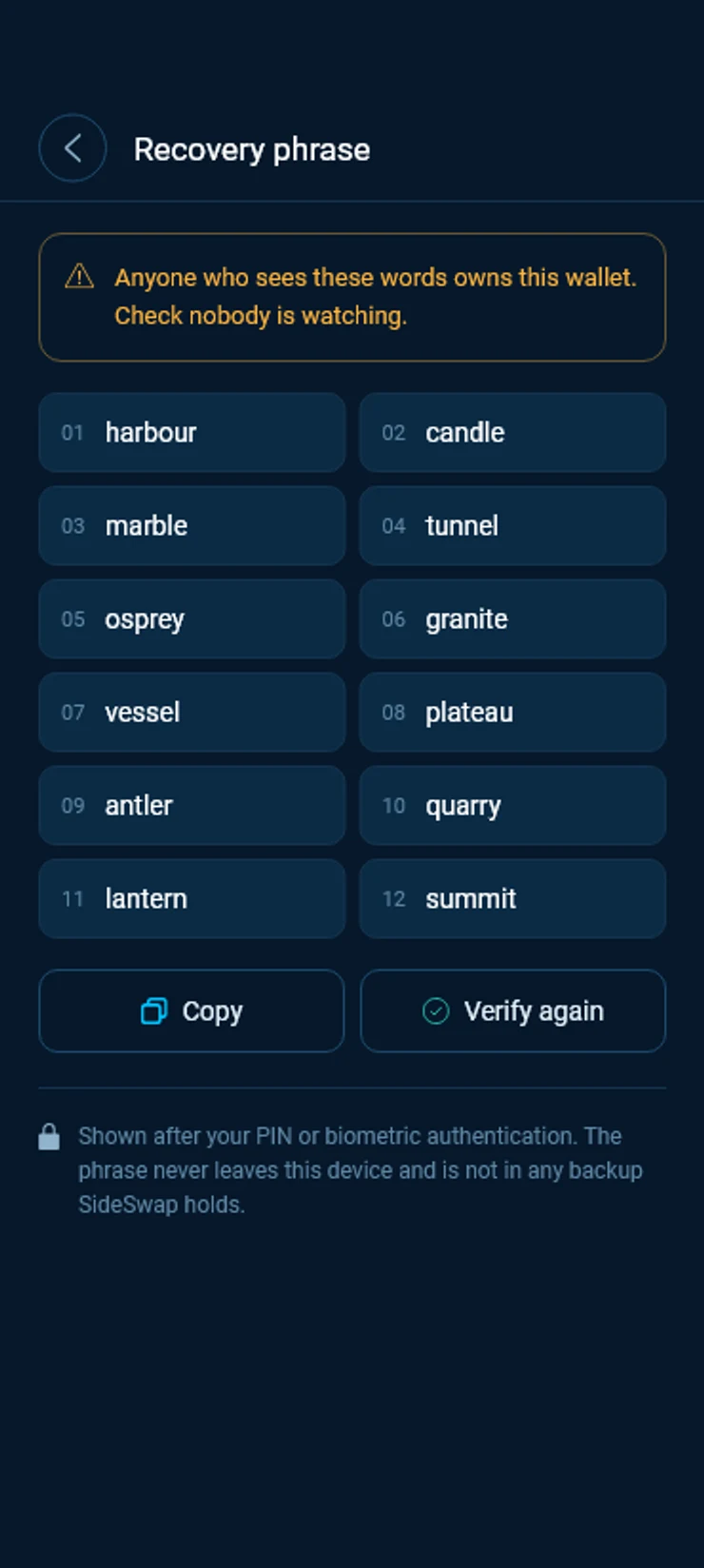
Check nobody is watching
Anyone who sees these words owns the wallet. Prefer your paper copy to the Copy button, because other apps can read what you copy.
Restore your wallet
Use this on a new phone or computer, after reinstalling the app, or when your history needs to be read again from scratch.
Install SideSwap
Get the app from the App Store, Google Play or sideswap.io/downloads.Choose to restore
On the first screen, tap Restore from recovery phrase. Then read the terms and tap I agree.Welcome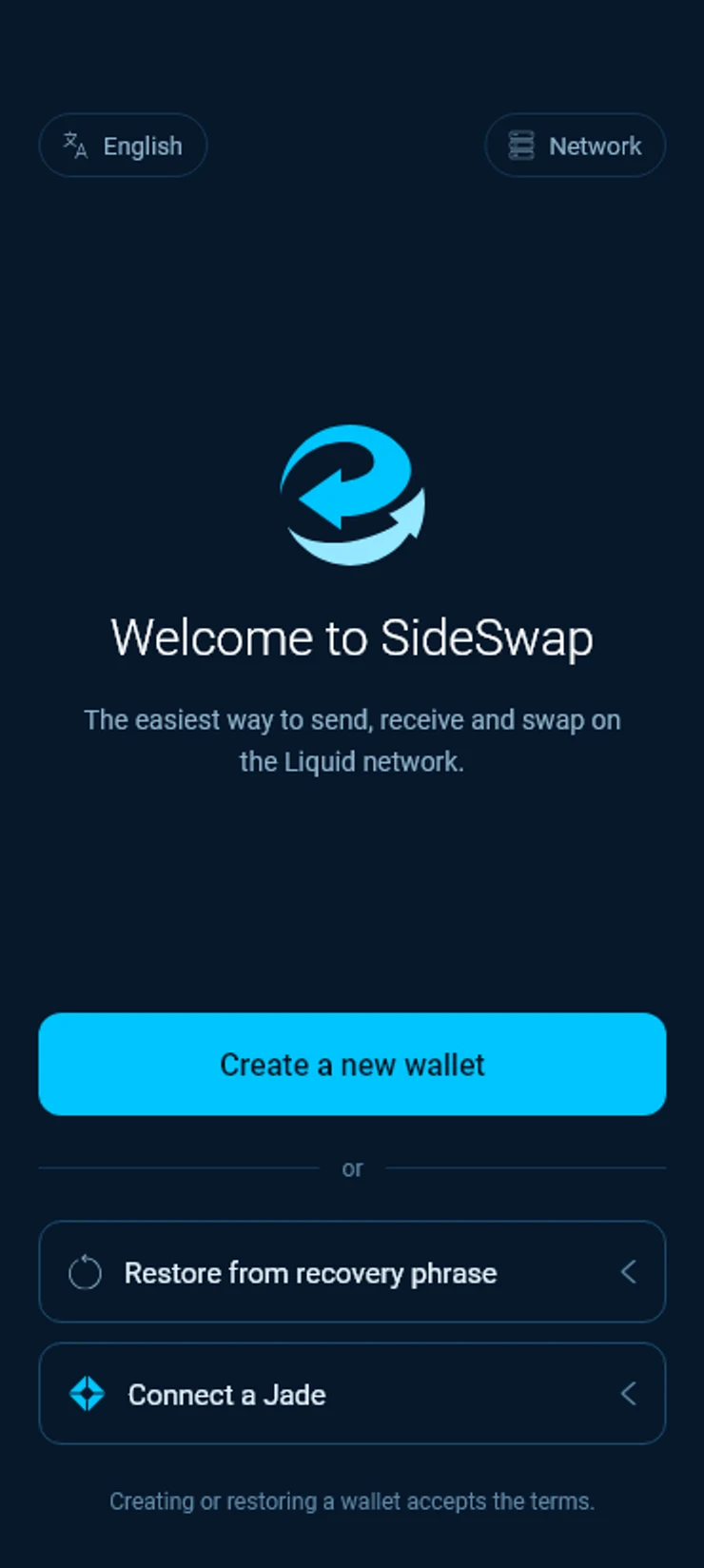
Enter your words
Choose 12 words or 24 words and type each word in order. The app suggests words as you type and checks them on your device. Nothing is sent until the phrase is complete.Recovery phrase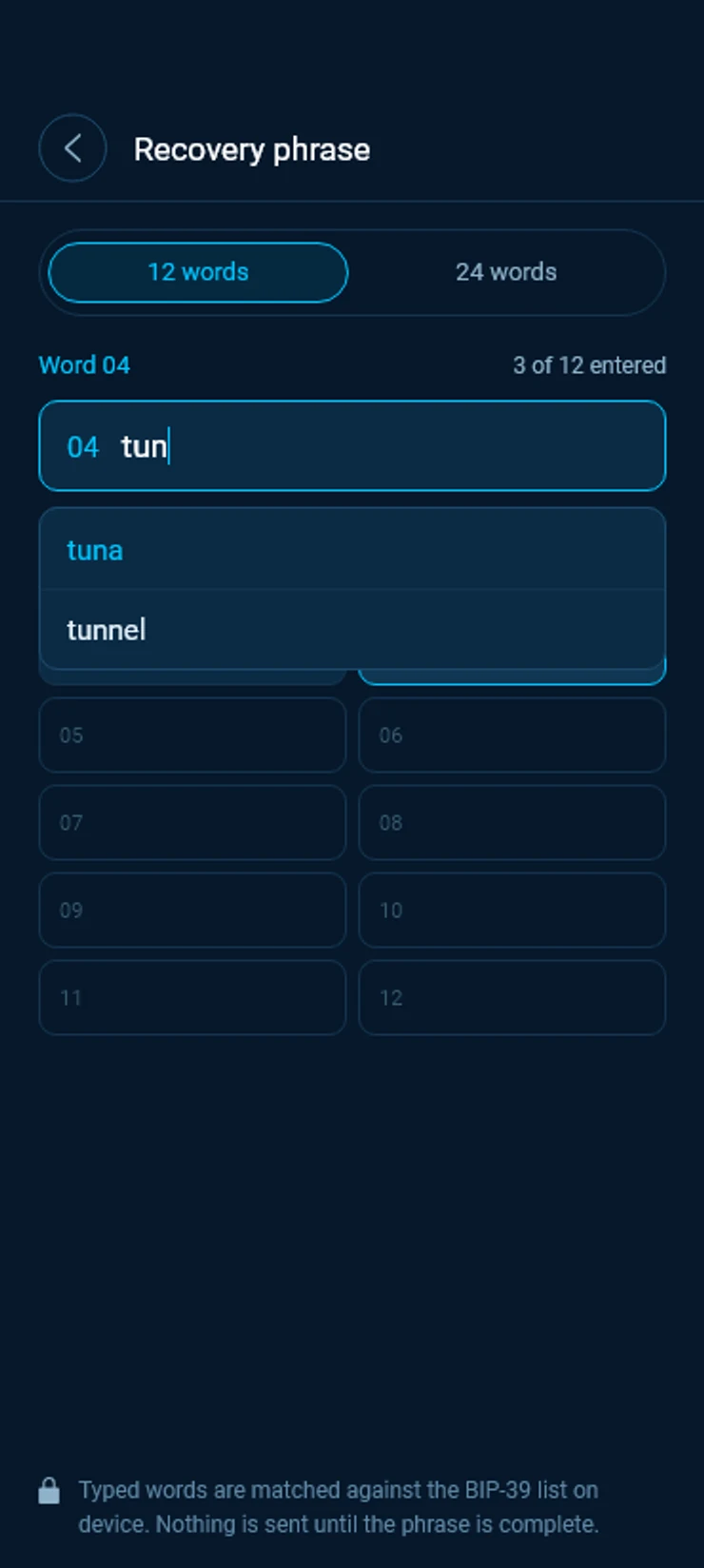
Let the scan finish
The app reads the chain for every address your wallet has used. Keep the app open until it finishes. If it closes now, you need to enter your phrase again.Restoring your wallet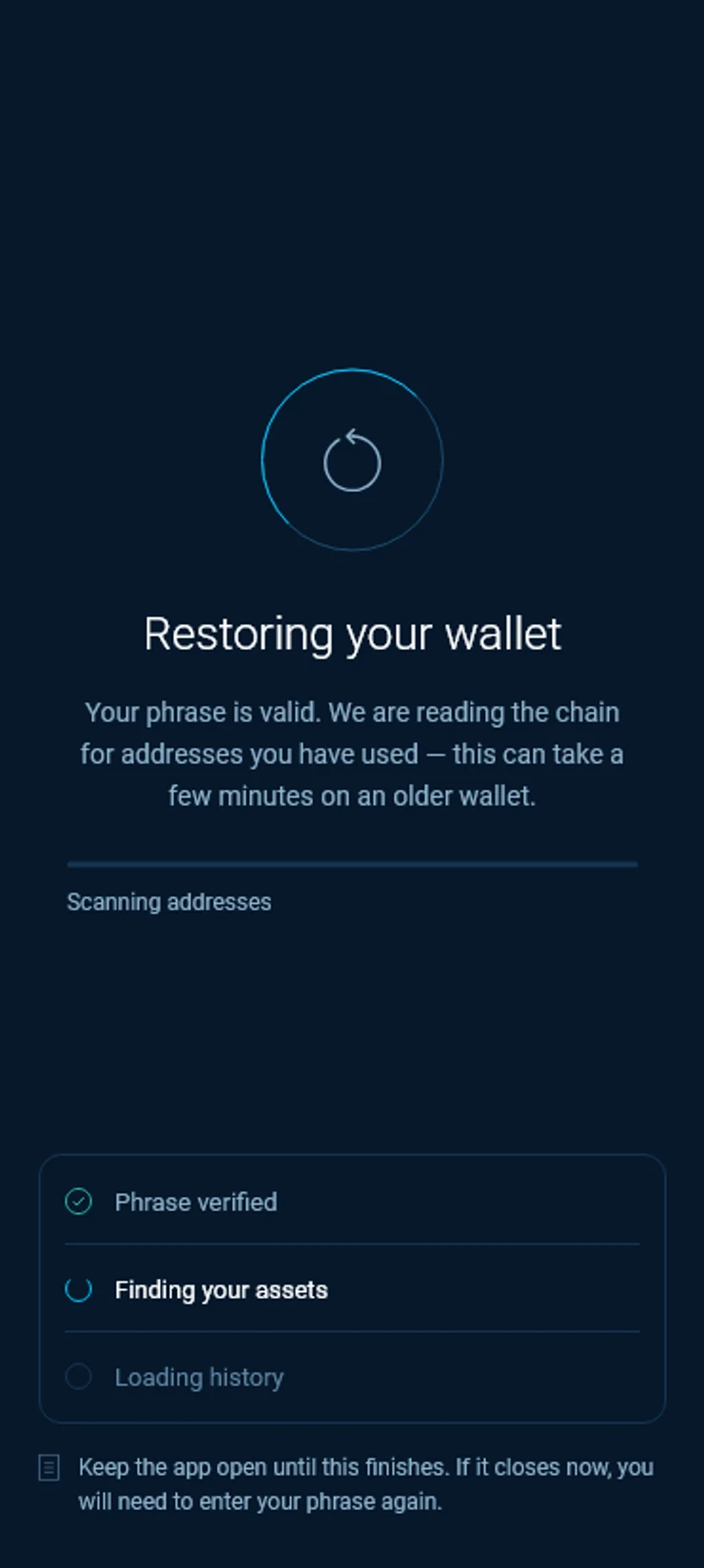
Check what came back
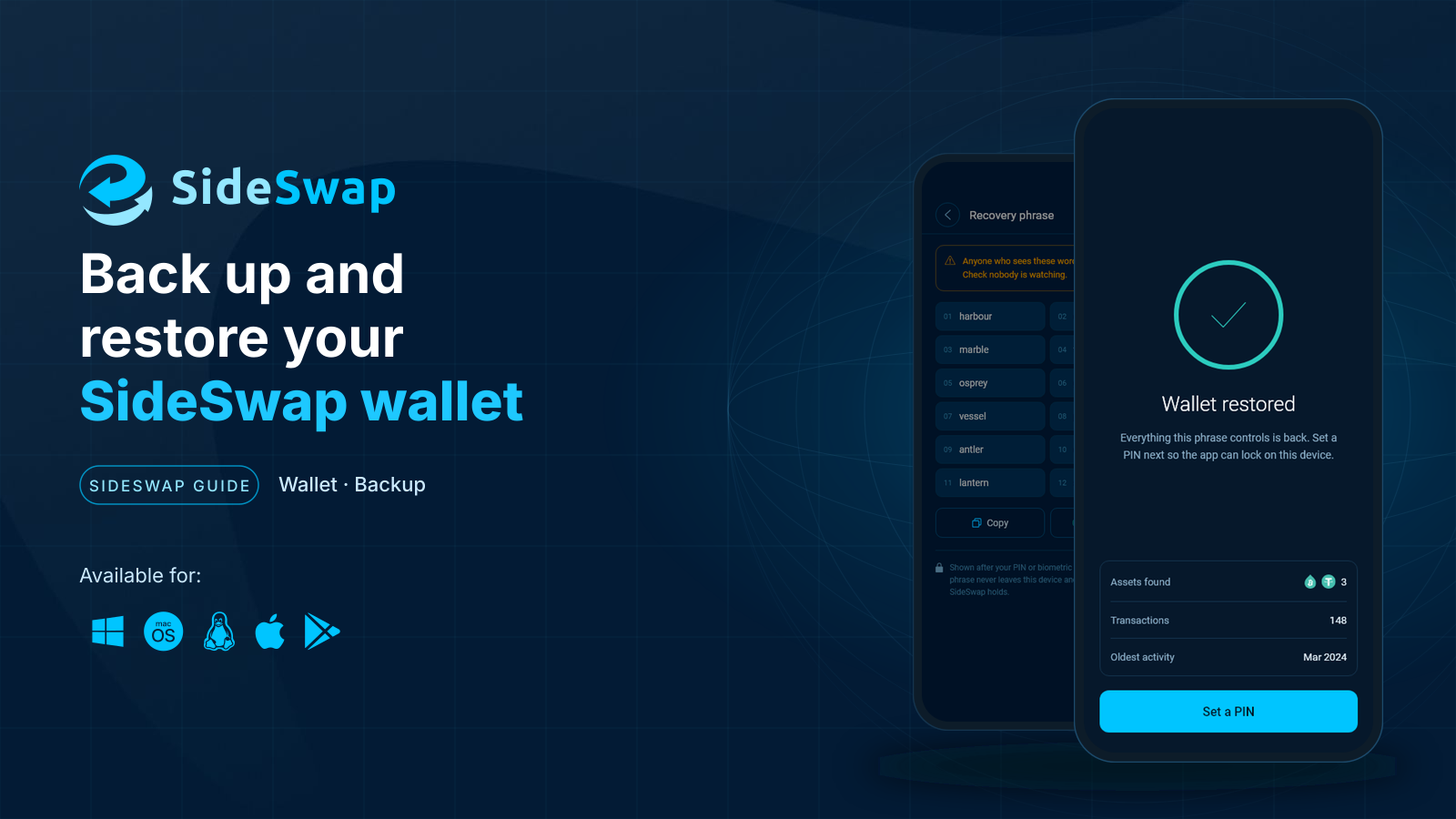
The app shows the assets it found, your number of transactions and your oldest activity. If they look like your wallet, tap Set a PIN and finish as in Get started.Wallet restored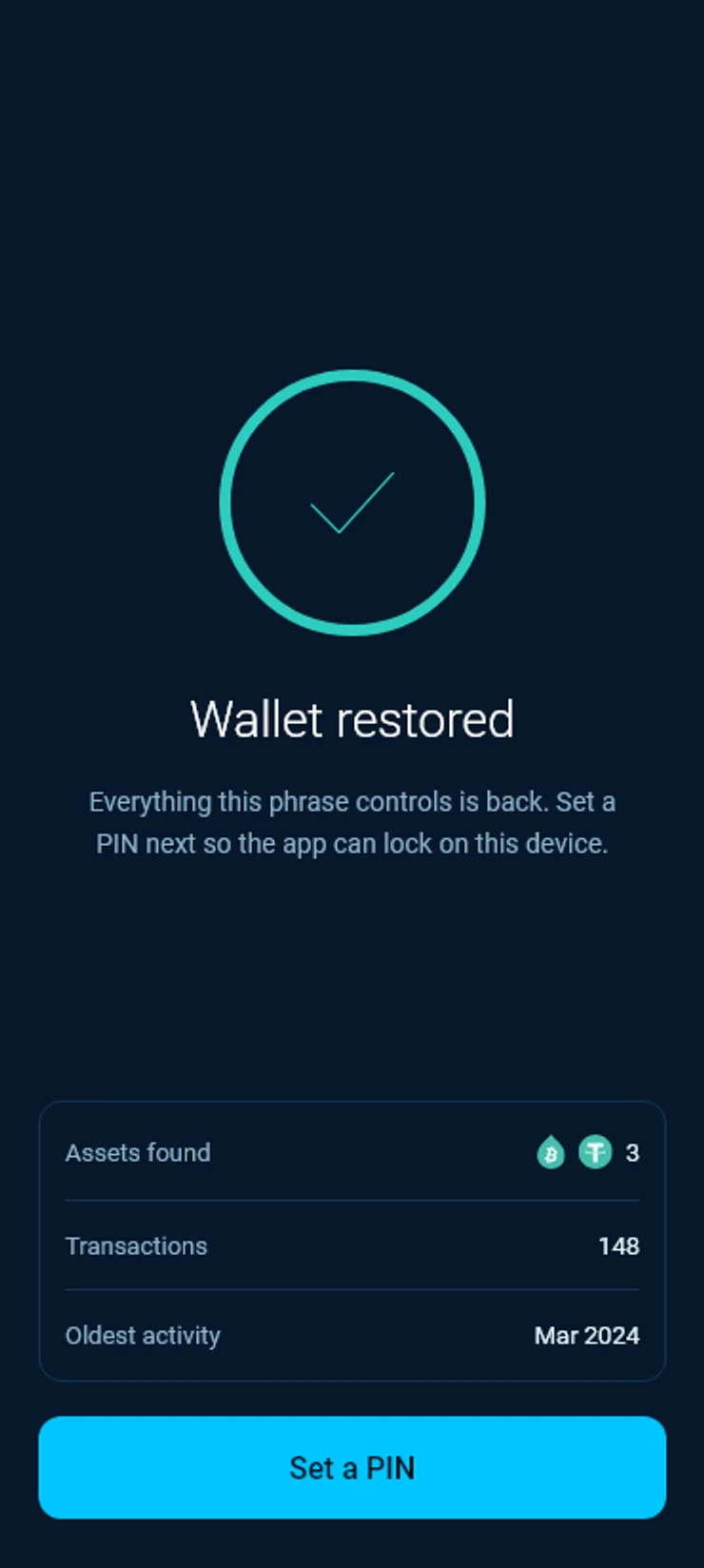
If something goes wrong
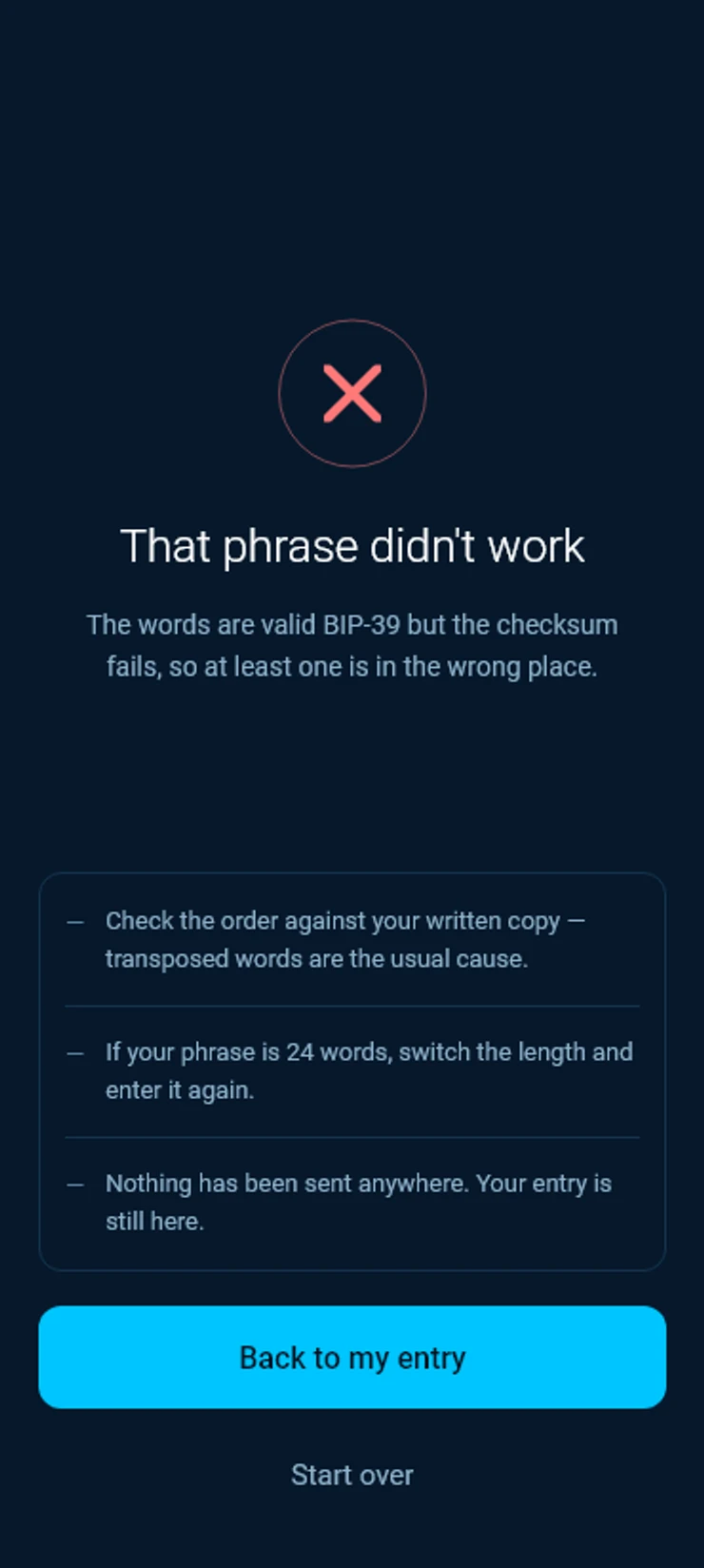
That phrase didn’t work
Every word is real, but at least one is in the wrong place, so the phrase does not add up. Check the order against your paper, because two swapped words are the usual cause. If your phrase has 24 words, switch to 24 and enter it again. Nothing has been sent anywhere.
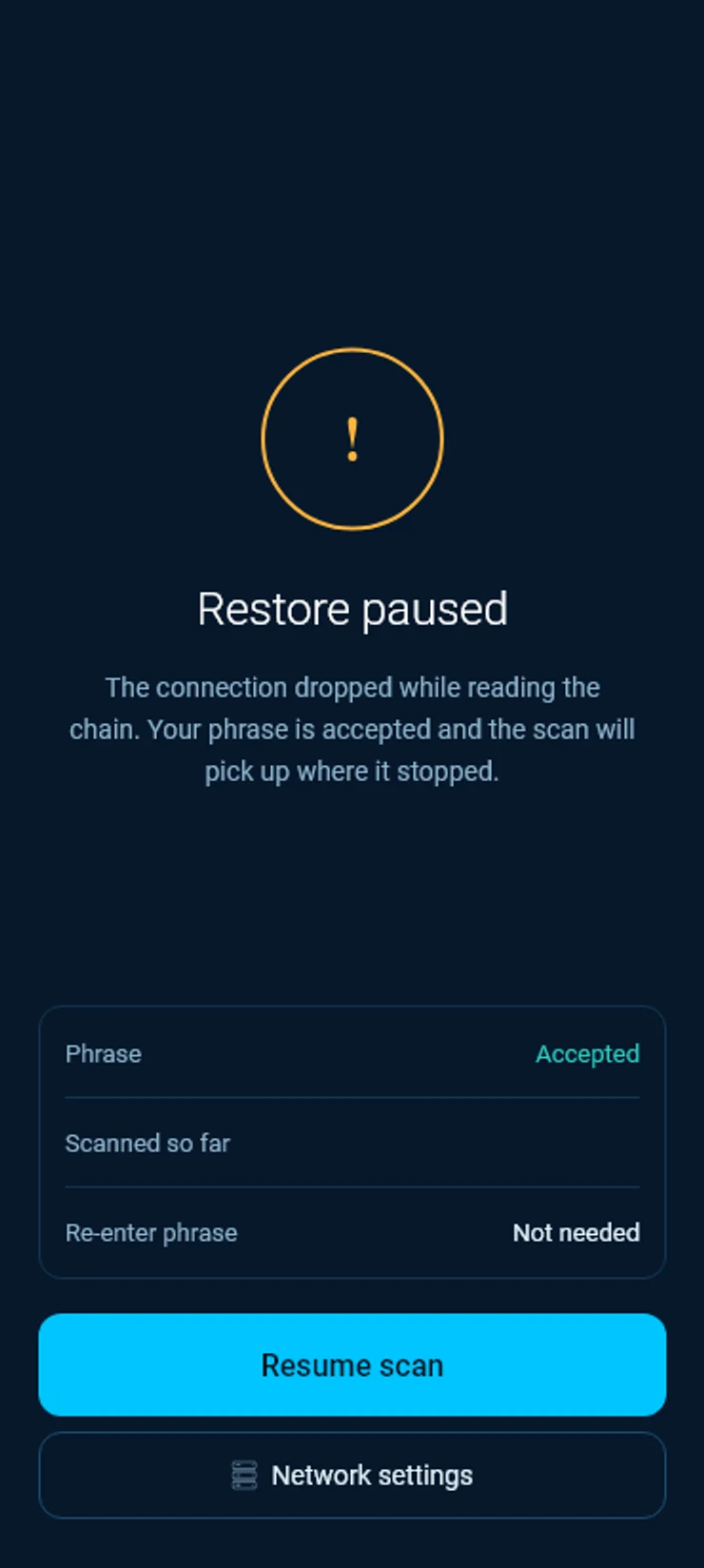
Restore paused
The connection dropped while the app was reading the chain. Your phrase is accepted, so you do not need to enter it again. Tap Resume scan and the scan picks up where it stopped. If it keeps pausing, try another network in Network settings.
A slow first start
The first start on a new device, and sometimes the first start after an update, reads your whole history again. A long history takes longer, whatever the balance. Leave the app open on a stable connection until it finishes.
A transaction or balance seems missing
Restoring the wallet again from your phrase makes the app read the history from scratch, and that usually brings it back. Before you remove the app, make sure your written phrase is complete and correct.
Peg-in details after a restore
Everything on chain comes back. Details that only lived on the old device, such as the progress page of a peg-in still on its way, may not show on the new one.
Other wallets
The phrase follows the BIP 39 standard, so other Liquid wallets that use the same paths can restore it. SideSwap reads two single signature accounts and derives the blinding keys from the same phrase.
Coming from another wallet
A phrase used in a wallet with a different path, for example m/84'/0'/0', still imports, but coins on that path will not show. Check which path your old wallet used, or ask support, before you move any funds.
Watch-only descriptors
Settings can export watch-only descriptors. They let another wallet see your full history and future activity but never spend. Share them only with wallets you trust.
Look your transaction up first. If it still looks wrong, write to support with the Bitcoin transaction ID.
Get started with SideSwap
Install the app, create your wallet, write down your recovery phrase and receive your first coins.
Staying safe
Spot fake support and copycat sites, and why a sent transaction cannot be reversed.
Use Jade with SideSwap
Connect a Blockstream Jade, keep your keys on the device and sign with it.