
At a glance
Before you start
- The SideSwap app, from sideswap.io/downloads.
- Your Jade charged, with its firmware up to date. SideSwap does not update Jade's firmware.
- Blockstream Green and any other app that uses your Jade closed. Only one app can talk to Jade at a time.
How it works
The first time you connect, Jade asks you to let SideSwap export the master blinding key. Liquid hides balances on the chain, and this key lets the app read yours. It cannot spend. Every payment still has to be approved on the device.
On your phone
Connect a Jade
On the welcome screen, tap Connect a Jade.Welcome to SideSwap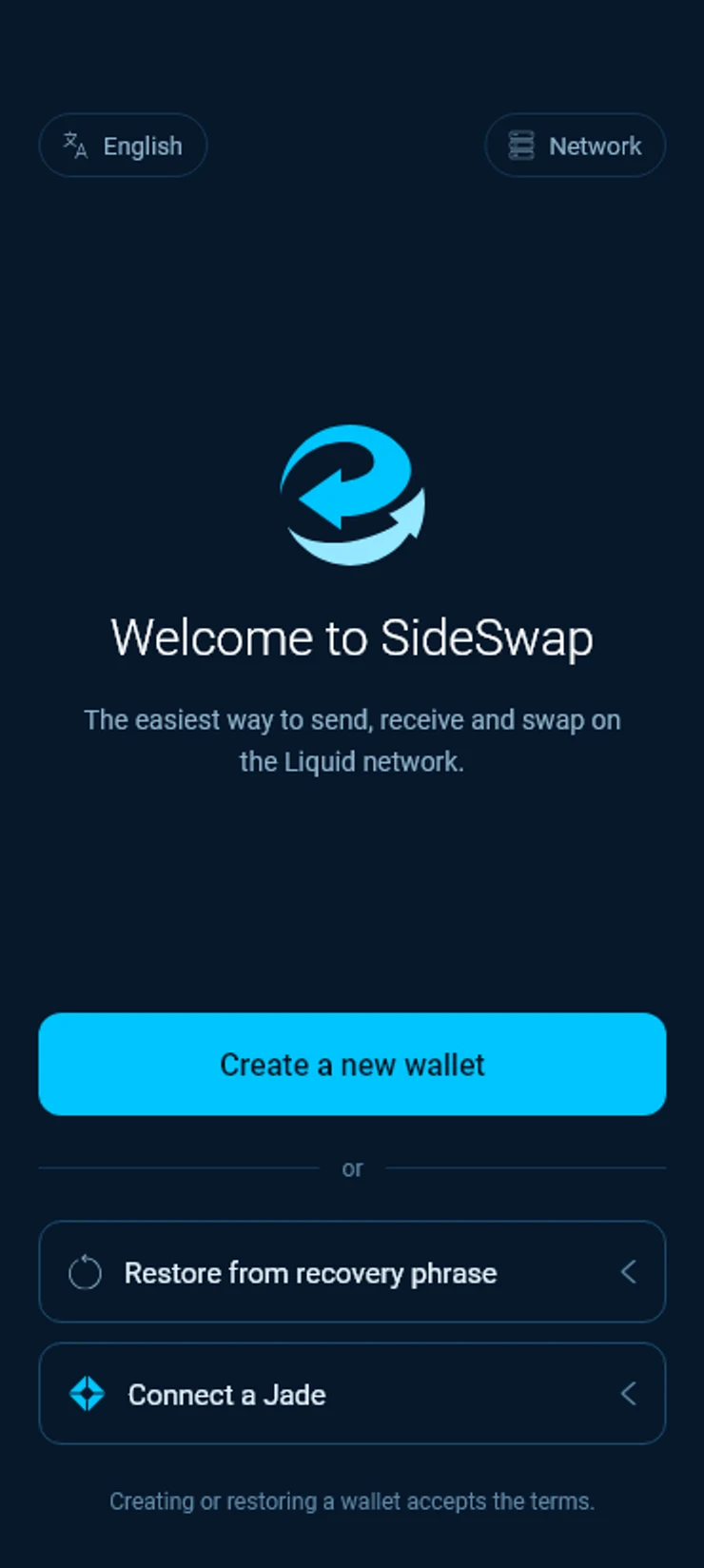
Power on Jade and allow Bluetooth
Hold the green button on the bottom of Jade until it starts. Tap Allow Bluetooth. On Android 11 and earlier the prompt may mention location, because scanning for nearby devices needs that permission. SideSwap never reads or keeps your location.Step 1 of 2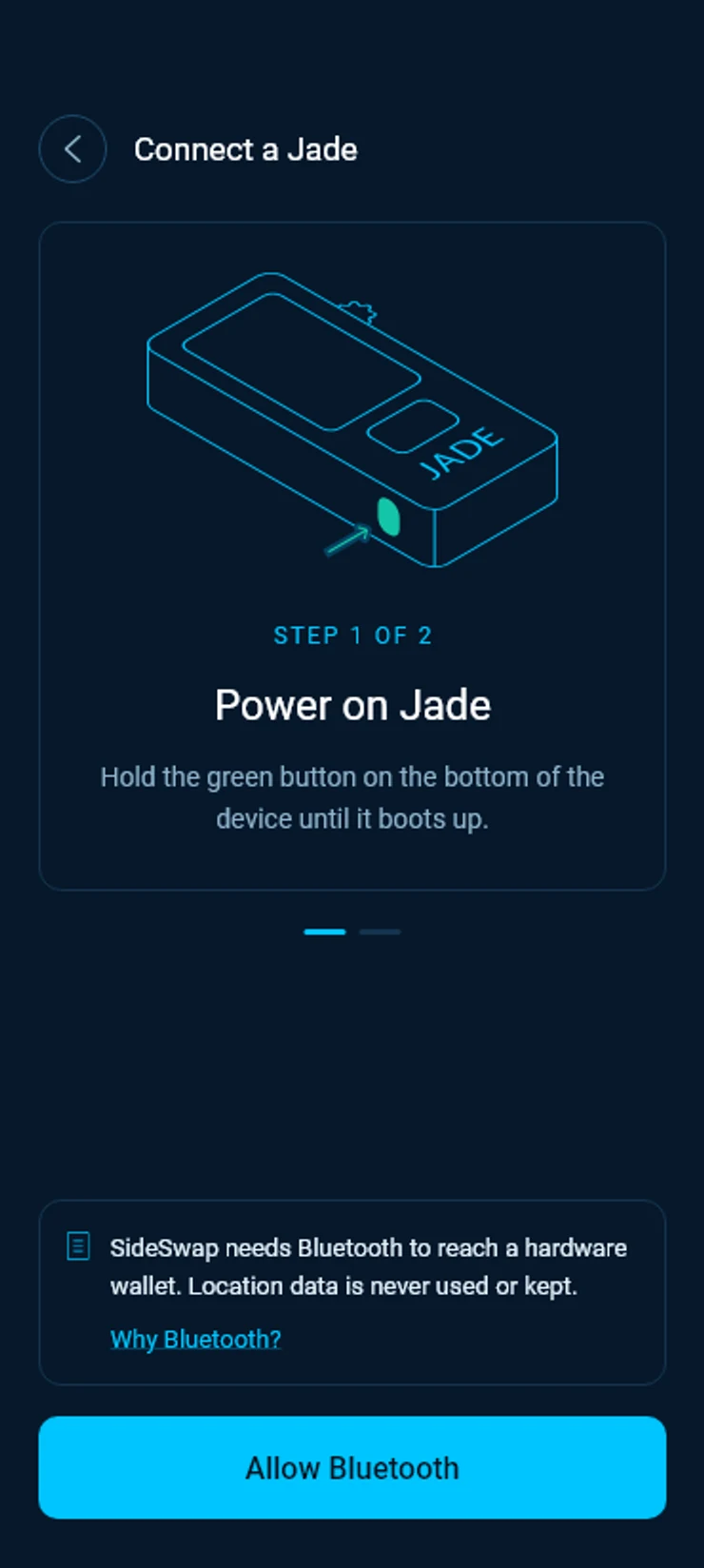
A new Jade, set it up on the device
On Jade, select Initialize, then New wallet. Jade creates the wallet and shows you its recovery phrase. Write it down. The app scans for your Jade meanwhile, so keep it awake and nearby.Step 2 of 2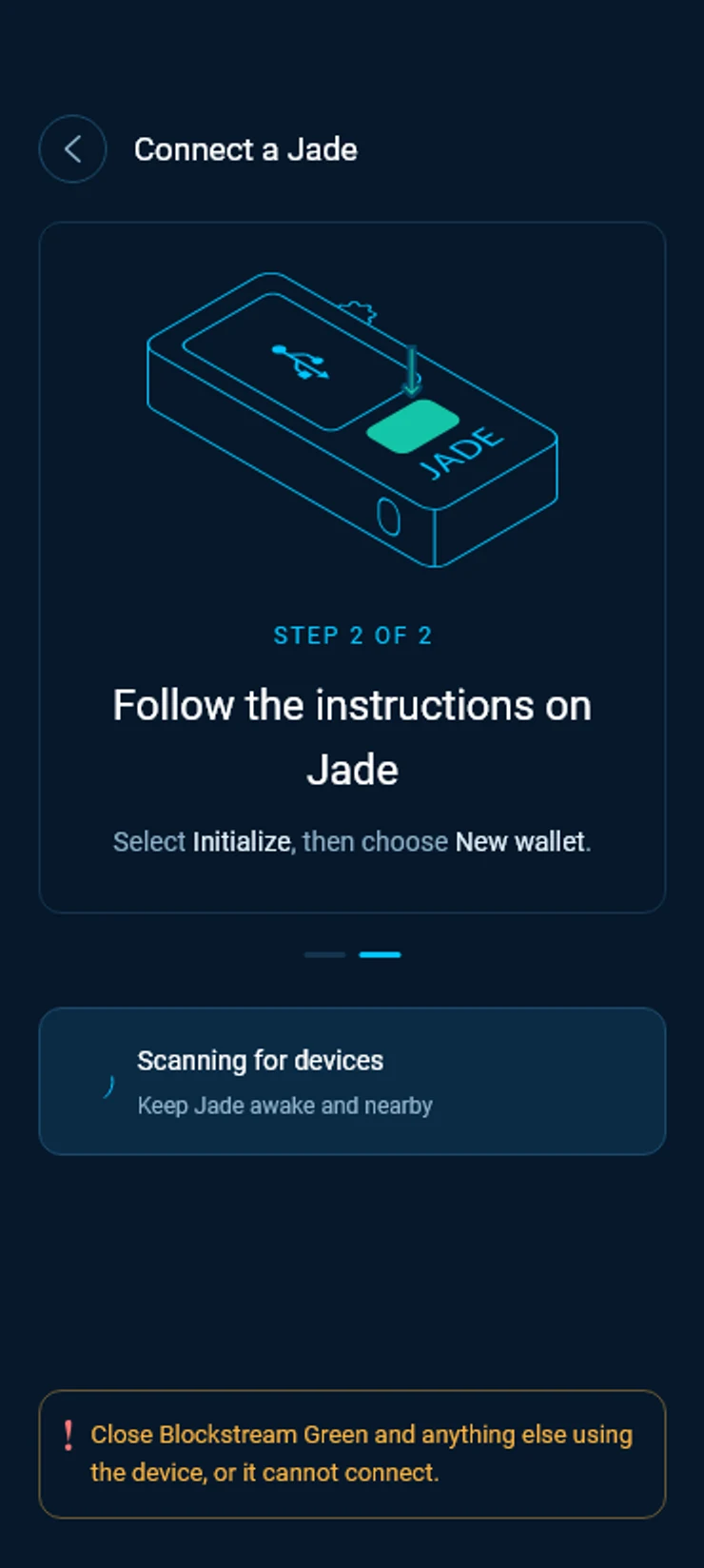
Select your Jade
Tap your Jade in the list. Nothing listed? Wake the device and check it is not paired to another app, then tap Scan again.Select your Jade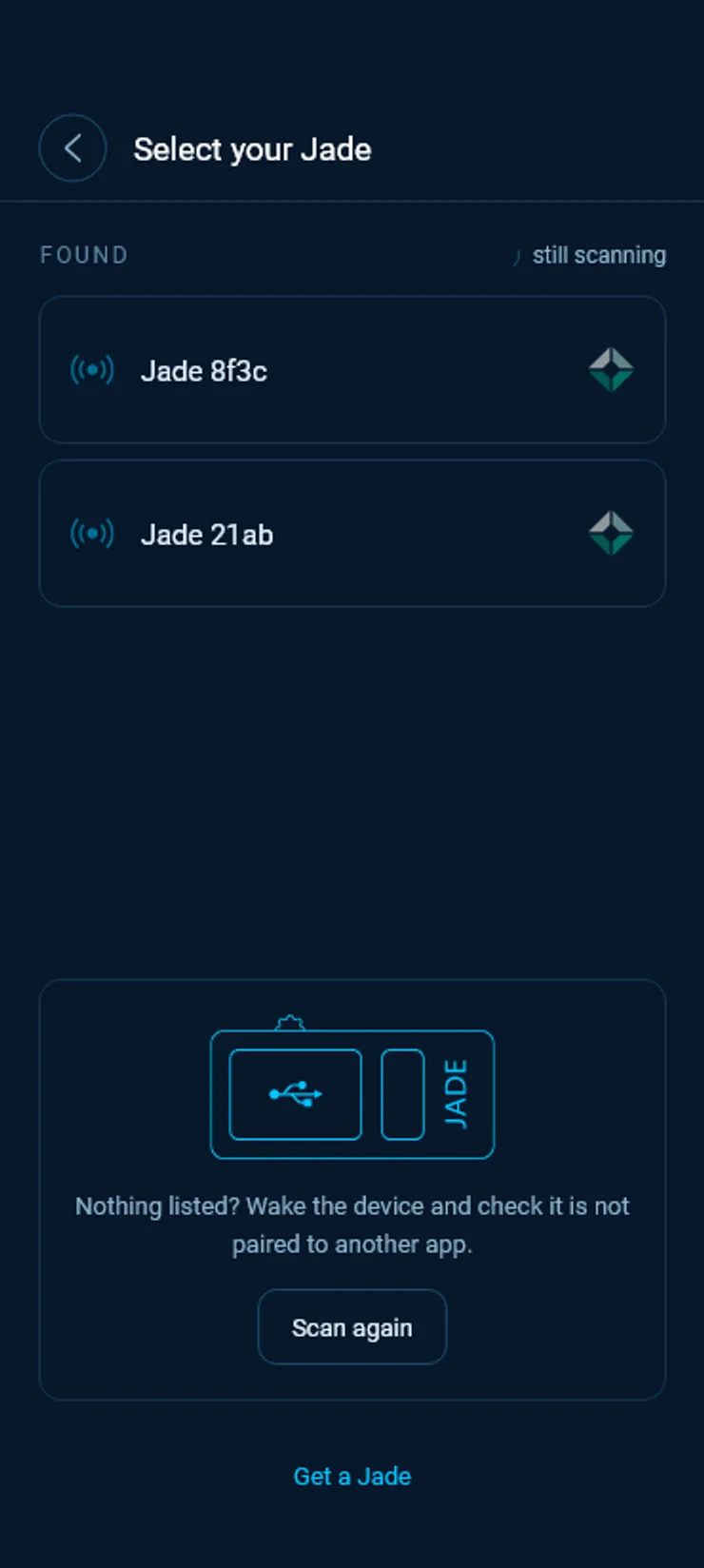
Enter your PIN on Jade
Use the buttons on the device. SideSwap never sees the PIN and cannot enter it for you. The app then registers your Jade with SideSwap.Enter your PIN on Jade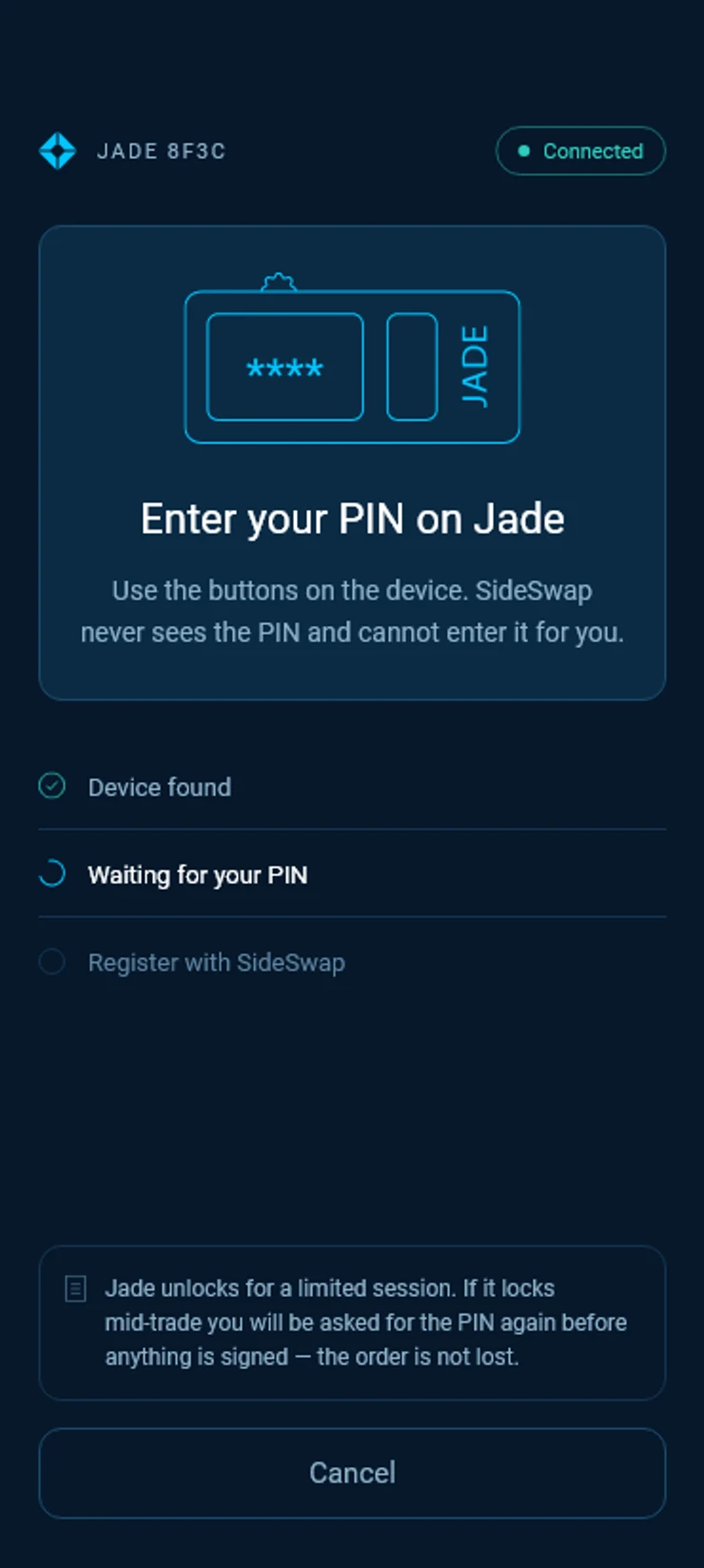
A Jade that already has a wallet
Tap Import this wallet and approve each request on the device. SideSwap reads the wallet’s addresses and your assets, and the keys never leave Jade.This Jade already has a wallet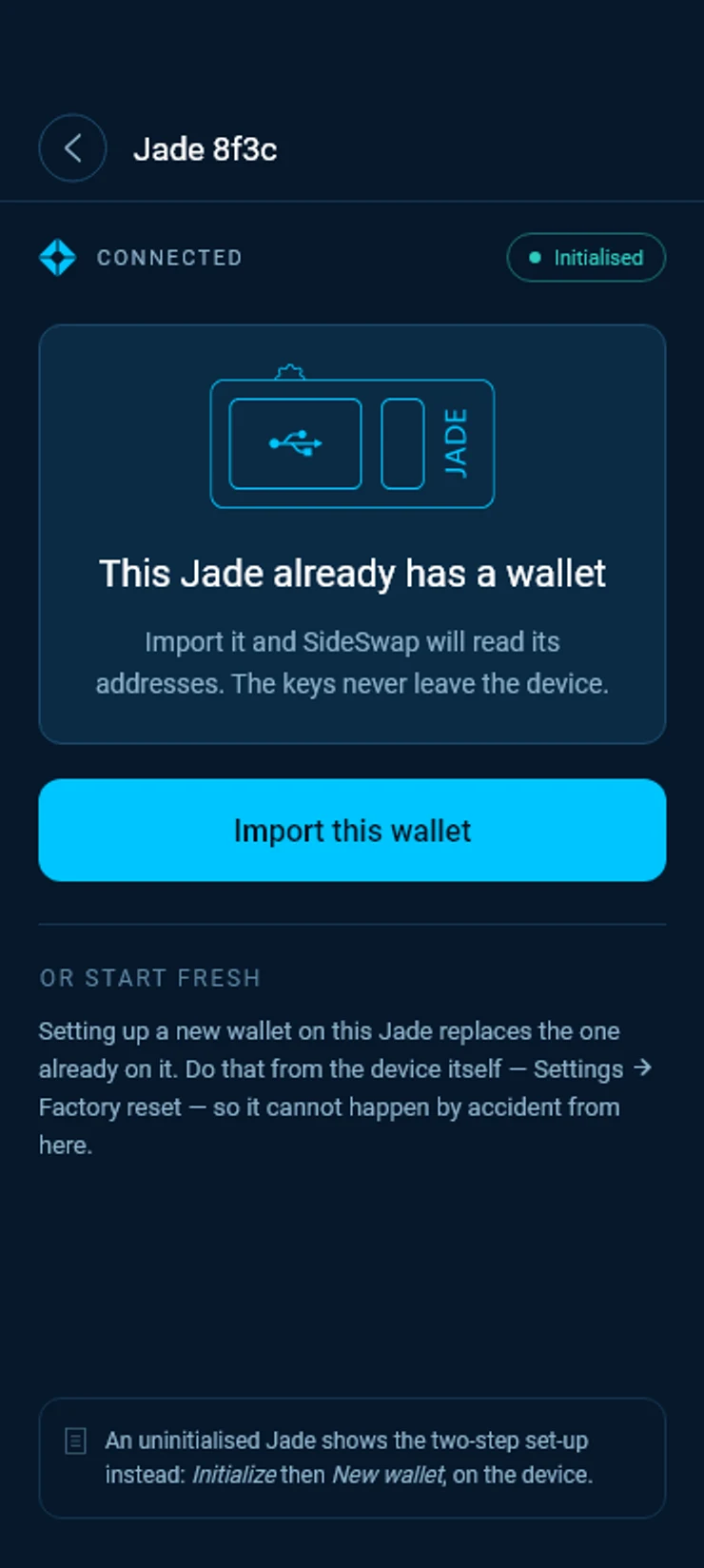
On your computer
Connect a Jade
Plug Jade into your computer with its USB cable. On the welcome screen of the desktop app, choose Connect a Jade.Welcome to SideSwap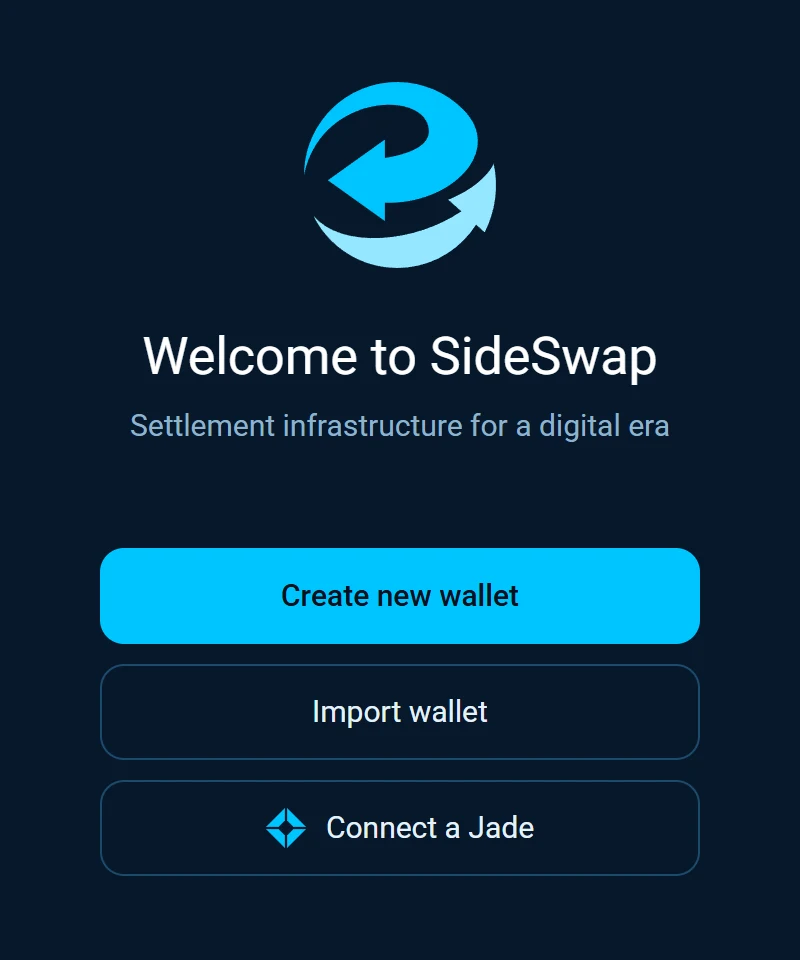
Register your Jade
The app finds Jade on its USB port and says it is ready to start. Unlock Jade with your PIN on the device and register it. A new Jade asks you to choose Initialize and New wallet on the device first.Jade is ready to start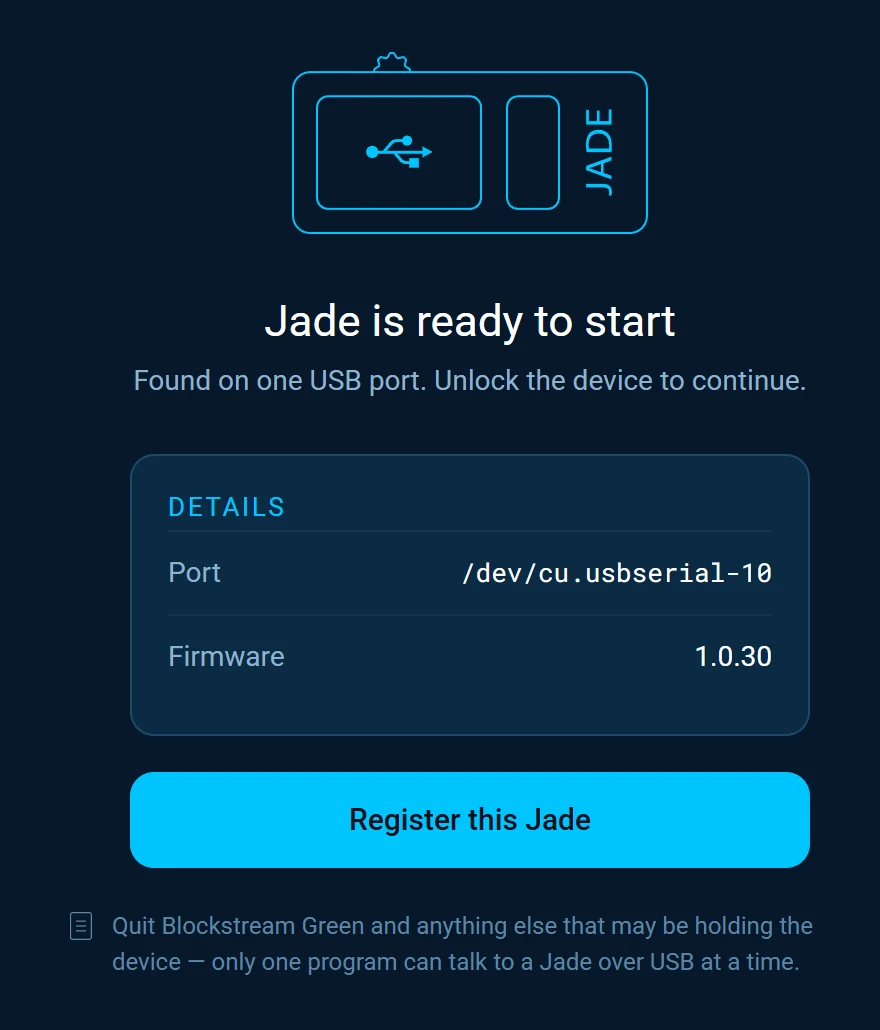
Allow the blinding key
Jade asks to export the master blinding key. Confirm it on the device, and the wallet opens with your balances.
Signing with Jade
When you send, swap or place an order, SideSwap asks Jade to sign. Check the amounts on Jade’s screen and confirm with its buttons. Nothing leaves your wallet until you do.
Jade stays unlocked for a limited session. If it locks in the middle of a trade, you are asked for the PIN again before anything is signed, and your order is not lost.
On the desktop Swap Market, an offline order is signed on Jade when you place it, so the order can be taken while Jade is unplugged. It may first need a transaction that makes a coin of the exact amount, which Jade signs too. See The Swap Market in the desktop app.
Good to know
Your backup
The recovery phrase of a Jade wallet is the one Jade showed you when you set it up. SideSwap never sees it. Keep it safe, as any recovery phrase. See Staying safe.
Start fresh on a Jade
Setting up a new wallet on a Jade replaces the one already on it. You do that on the device itself, under Settings, then Factory reset, so it cannot happen by accident from the app.
Jade cannot connect
Close Blockstream Green and anything else using the device. On a phone, check that Bluetooth is allowed for SideSwap in your system settings.
Look your transaction up first. If it still looks wrong, write to support with the Bitcoin transaction ID.
Staying safe
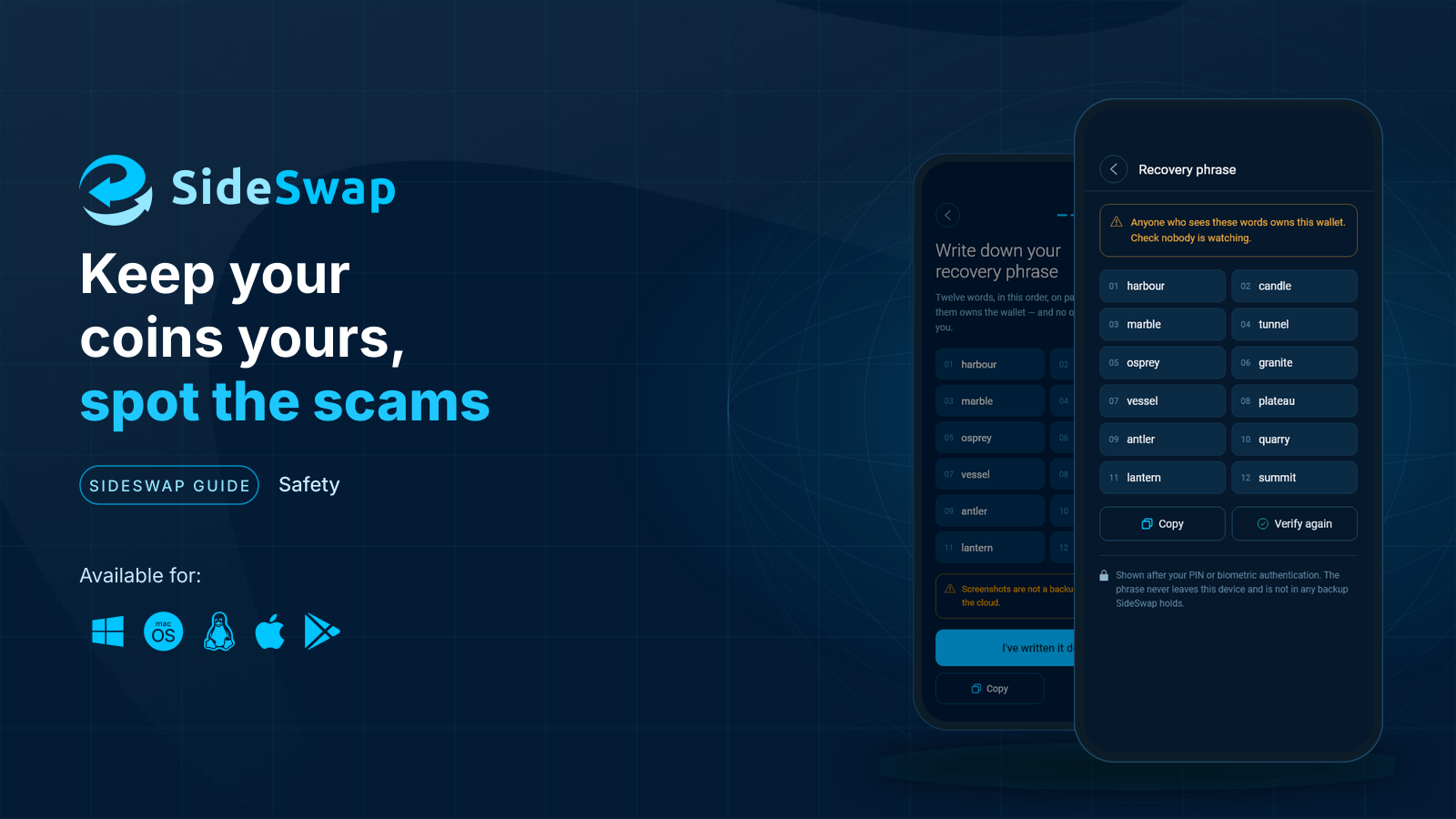
Spot fake support and copycat sites, and why a sent transaction cannot be reversed.
The Swap Market in the desktop app
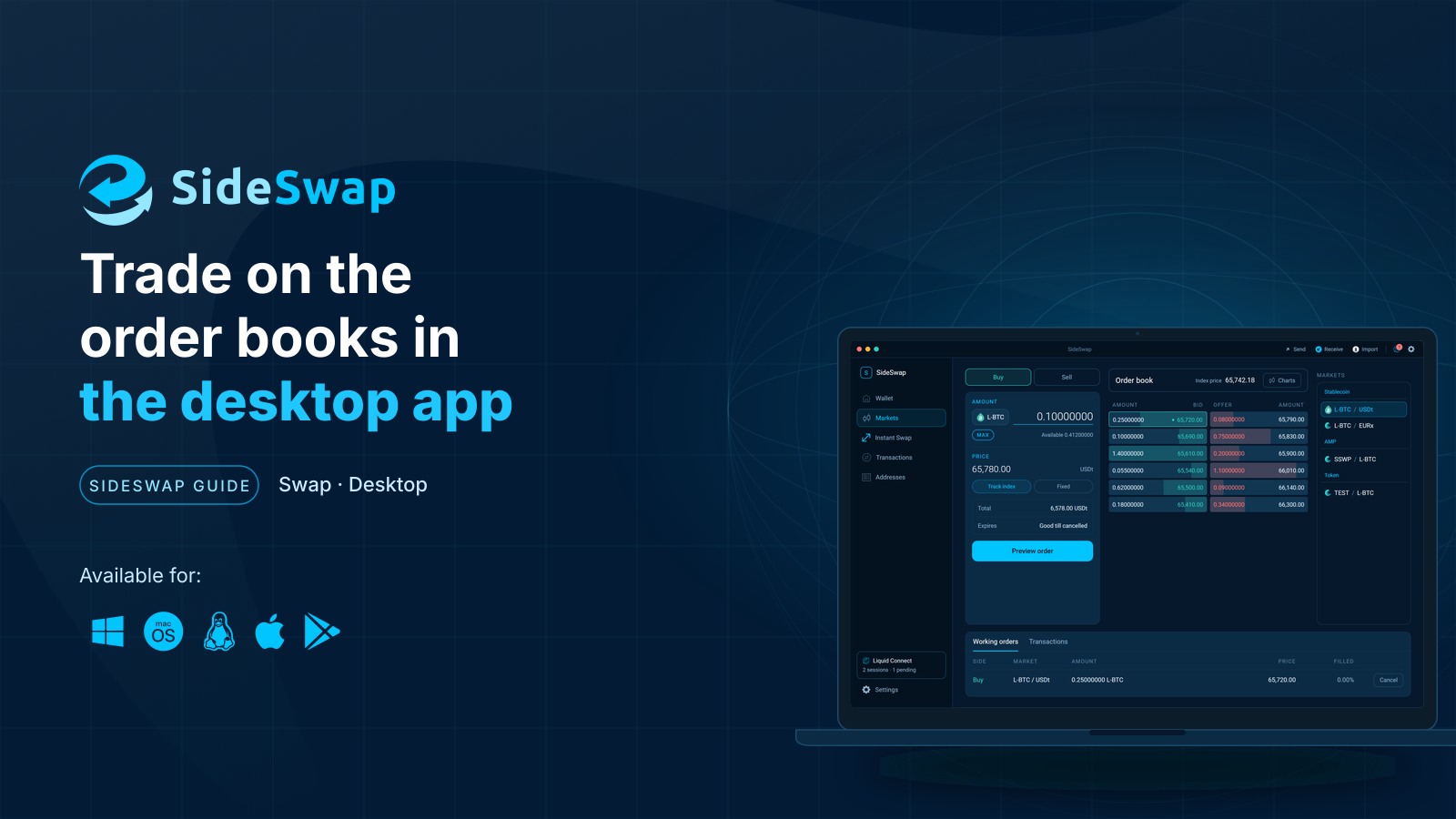
Place, change and cancel orders on the order books, online or offline, public or private.
Back up and restore your wallet
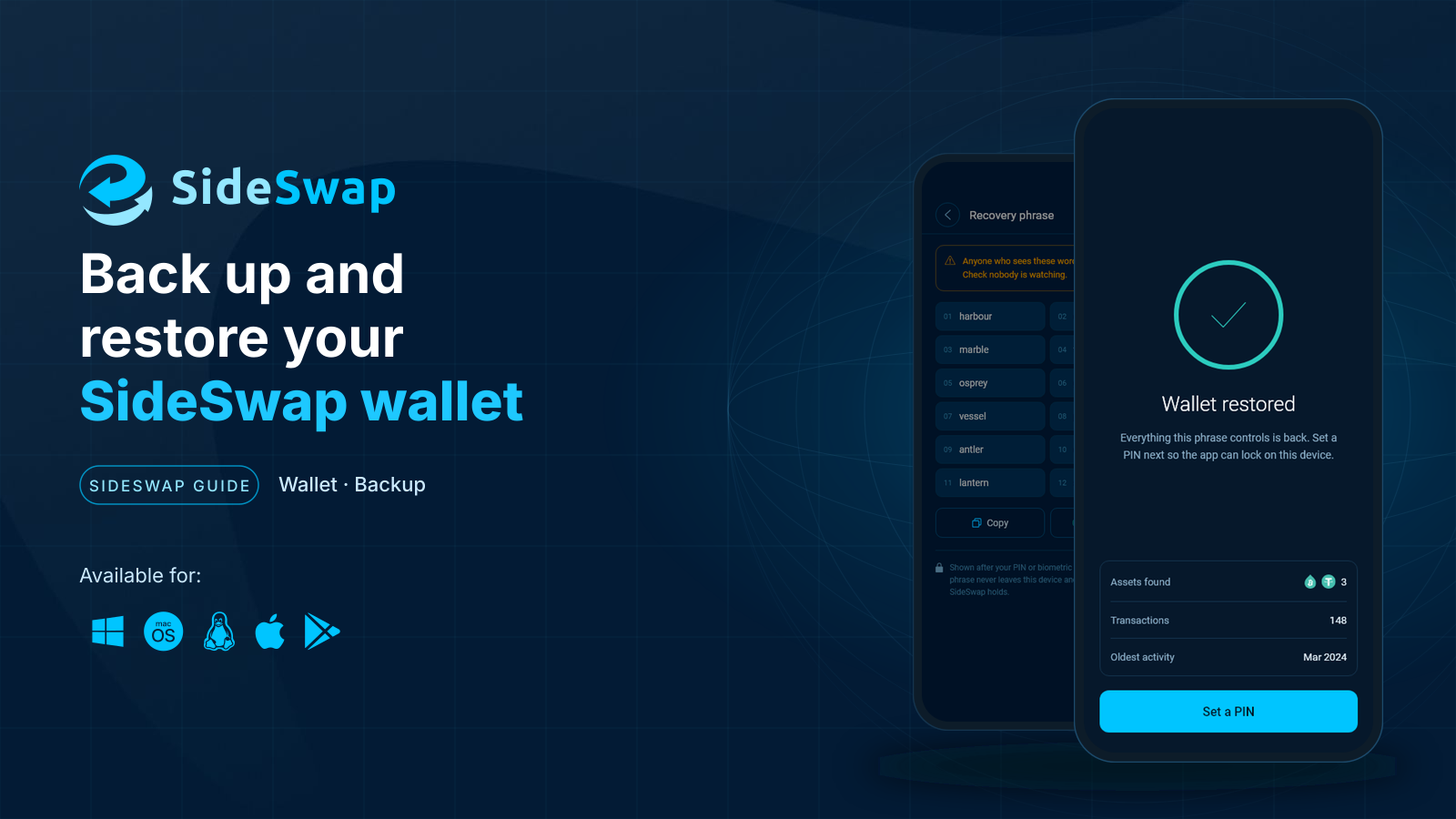
Keep your recovery phrase safe, restore on a new device and know what a first scan looks like.