
At a glance
The Websites list
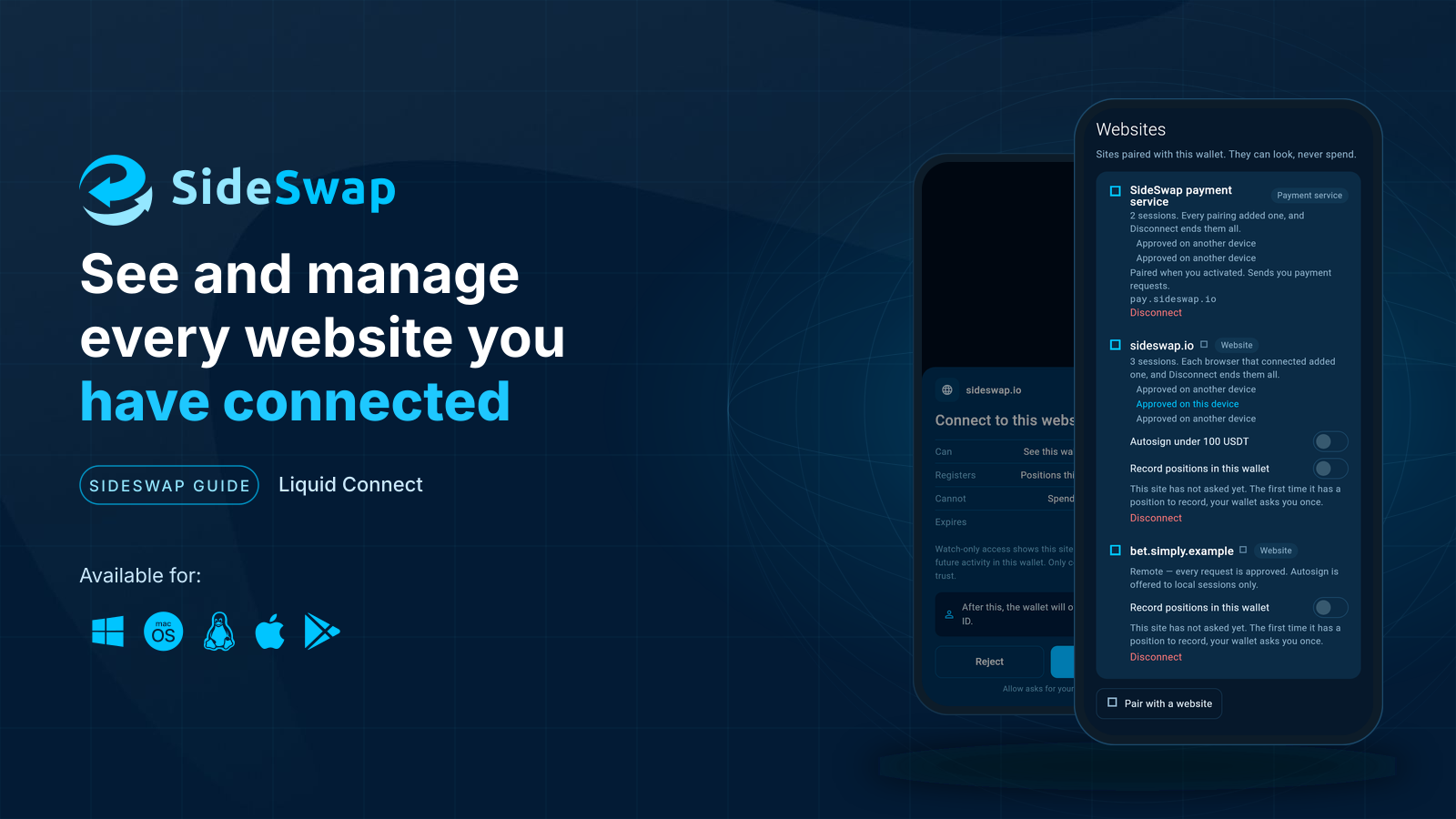
Open Liquid Connect in the wallet and go to Websites. It lists the sites paired with this wallet. They can look, never spend.
The SideSwap payment service comes first, then each website once. At the bottom you can pair a new website or paste a connection link a website gave you.
What a row tells you
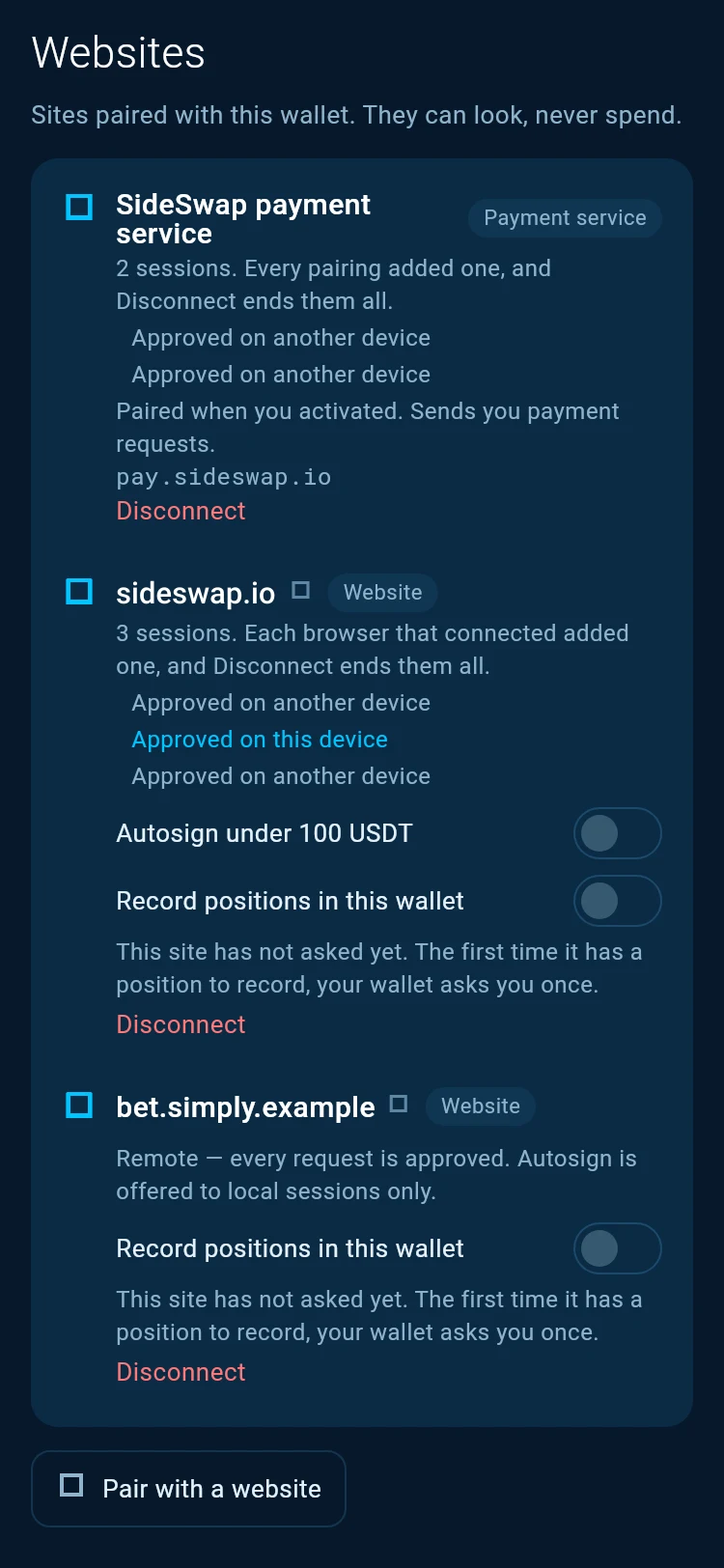
Sessions. Each browser that connected to a site added one, so a site you used on a phone and a laptop has two. Each line says whether it was approved on this device or another one, and when it was paired and last used.
Disconnect older sessions keeps only the newest one, handy when an old browser still holds a connection.
Autosign under 100 USDT lets small requests from that site sign themselves. It is offered only when the site was approved on this device. See Approve what a website asks.
Record positions in this wallet lets the site save positions it creates for you, such as a loan, so your wallet keeps them and checks each one against the chain. The first time the site has one to record, your wallet asks you once.
Disconnect
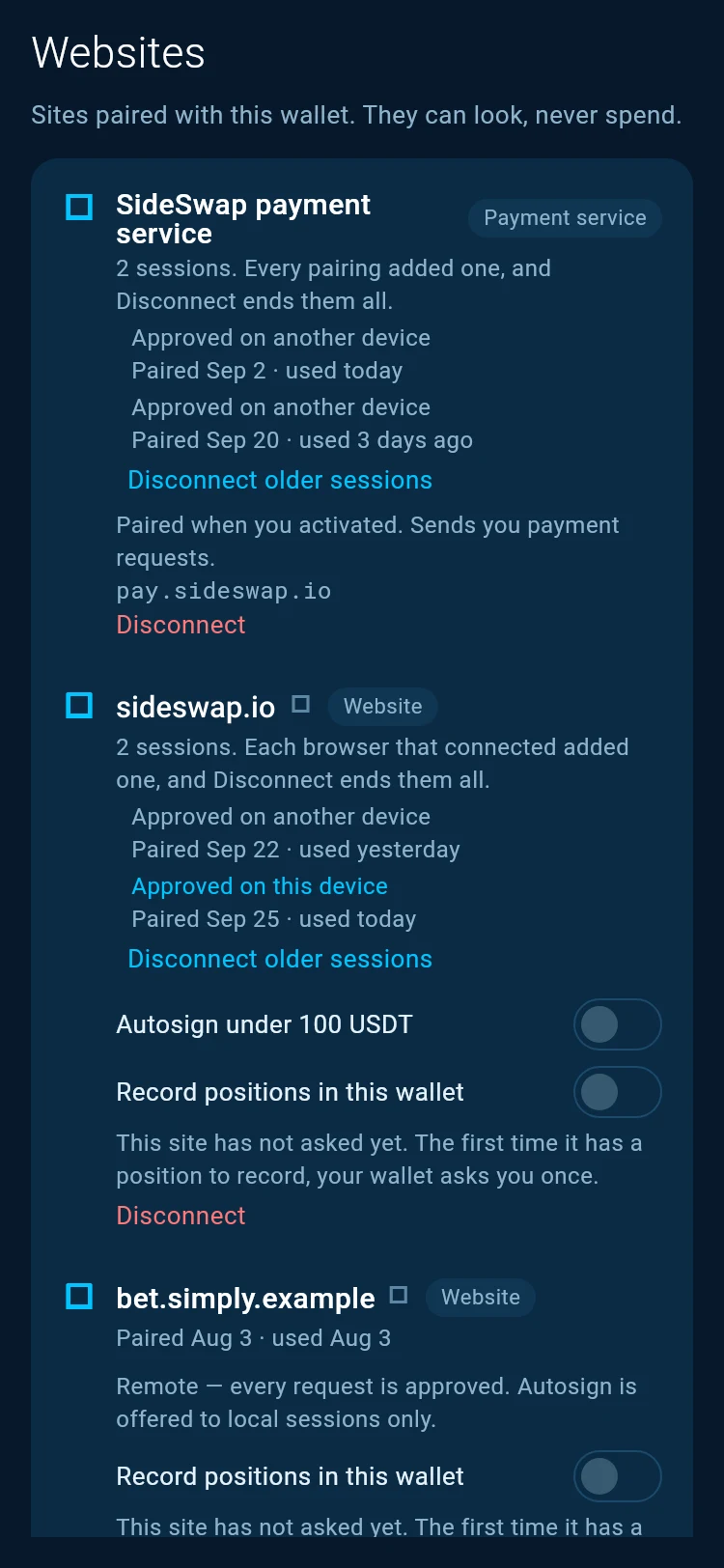
Tap Disconnect on a row to end every session of that website. Requests from it that are still waiting are dropped. To end all websites at once, use Disconnect all.
Disconnecting never affects funds you already sent. It only closes the door to new requests from that site.
What a website keeps
Disconnecting stops a website’s requests. It cannot take back what the site has already seen. A site that held your watch-only keys can still follow the activity of the accounts you shared.
The SideSwap payment service
The first row is the SideSwap payment service. It was paired when you activated Liquid Connect, and it is how payment requests reach your wallet. Like every site, it can look but never spend. The wallet asks you to confirm before you disconnect it.
Good to know
A site you do not recognise
Disconnect it, and check the transactions in your wallet. A connected site can never move funds without your approval.
Connect again later
A website you disconnected can connect again at any time. It asks for your approval like the first time.
New to Liquid Connect
Start with Connect your wallet to a website.
Look your transaction up first. If it still looks wrong, write to support with the Bitcoin transaction ID.
Connect your wallet to a website
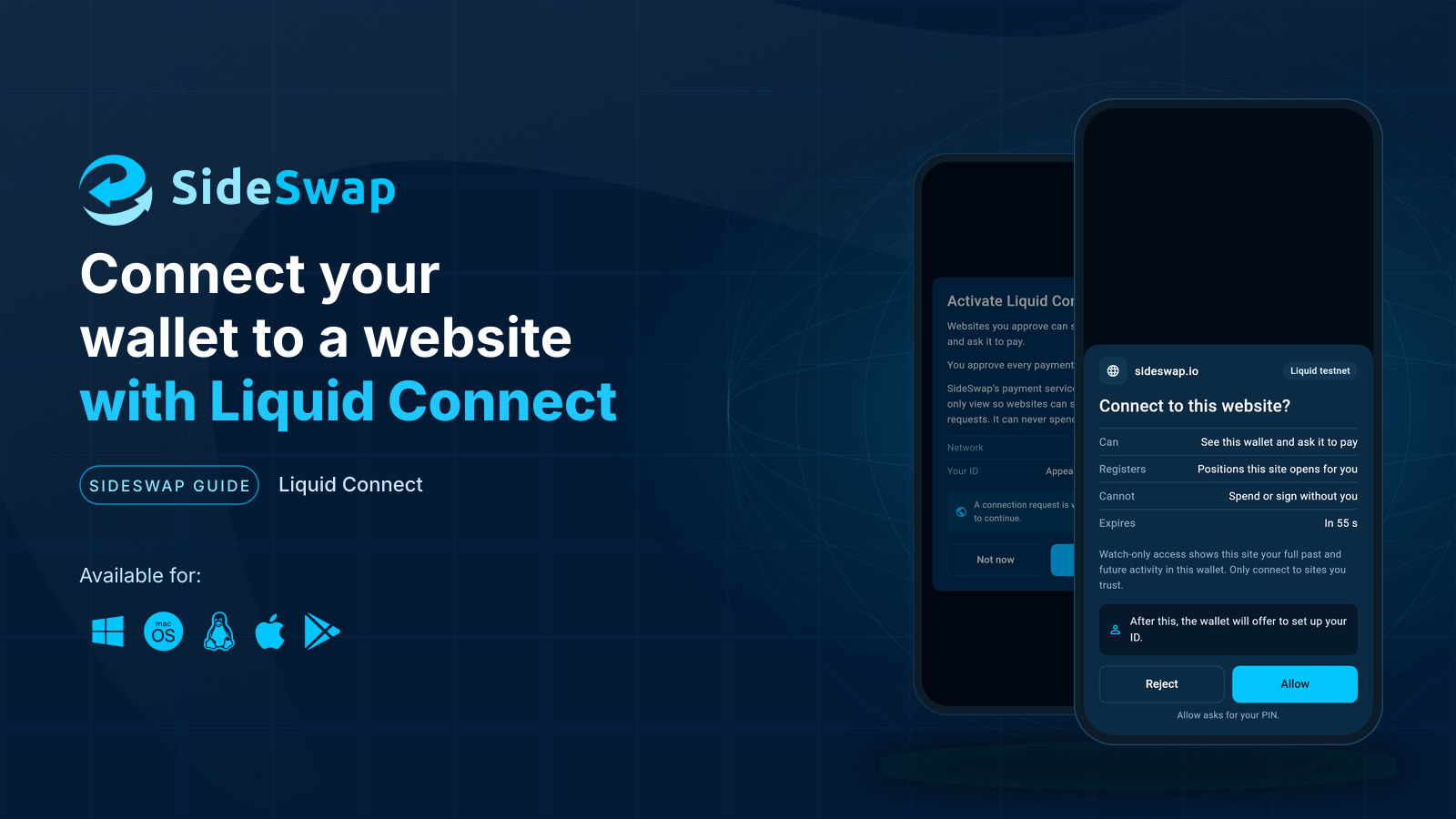
What Liquid Connect is, what one approval gives a website and what it never can.
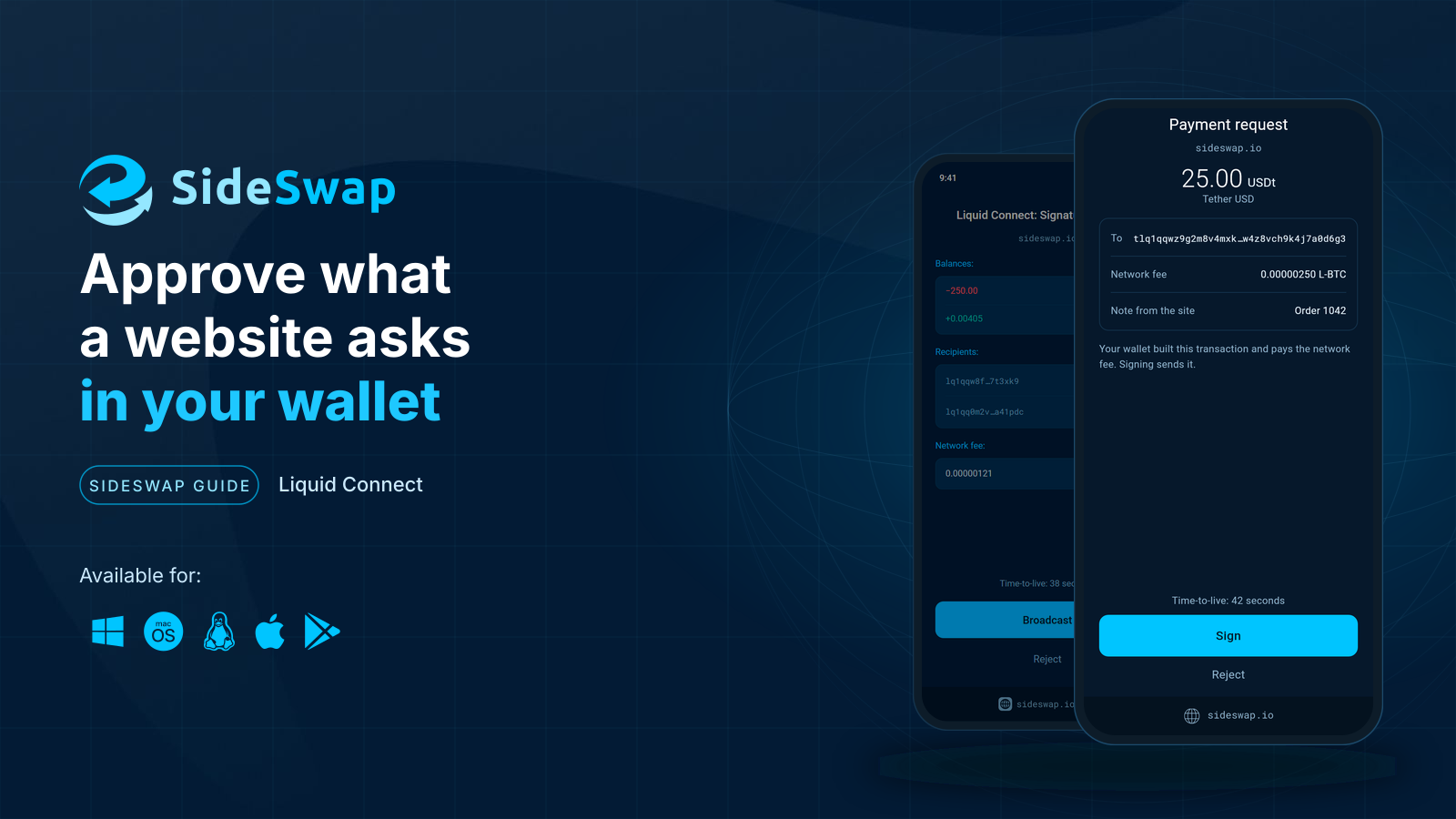
Approve what a website asks
Read a signature request, see what leaves and what arrives, and let small trades sign themselves.
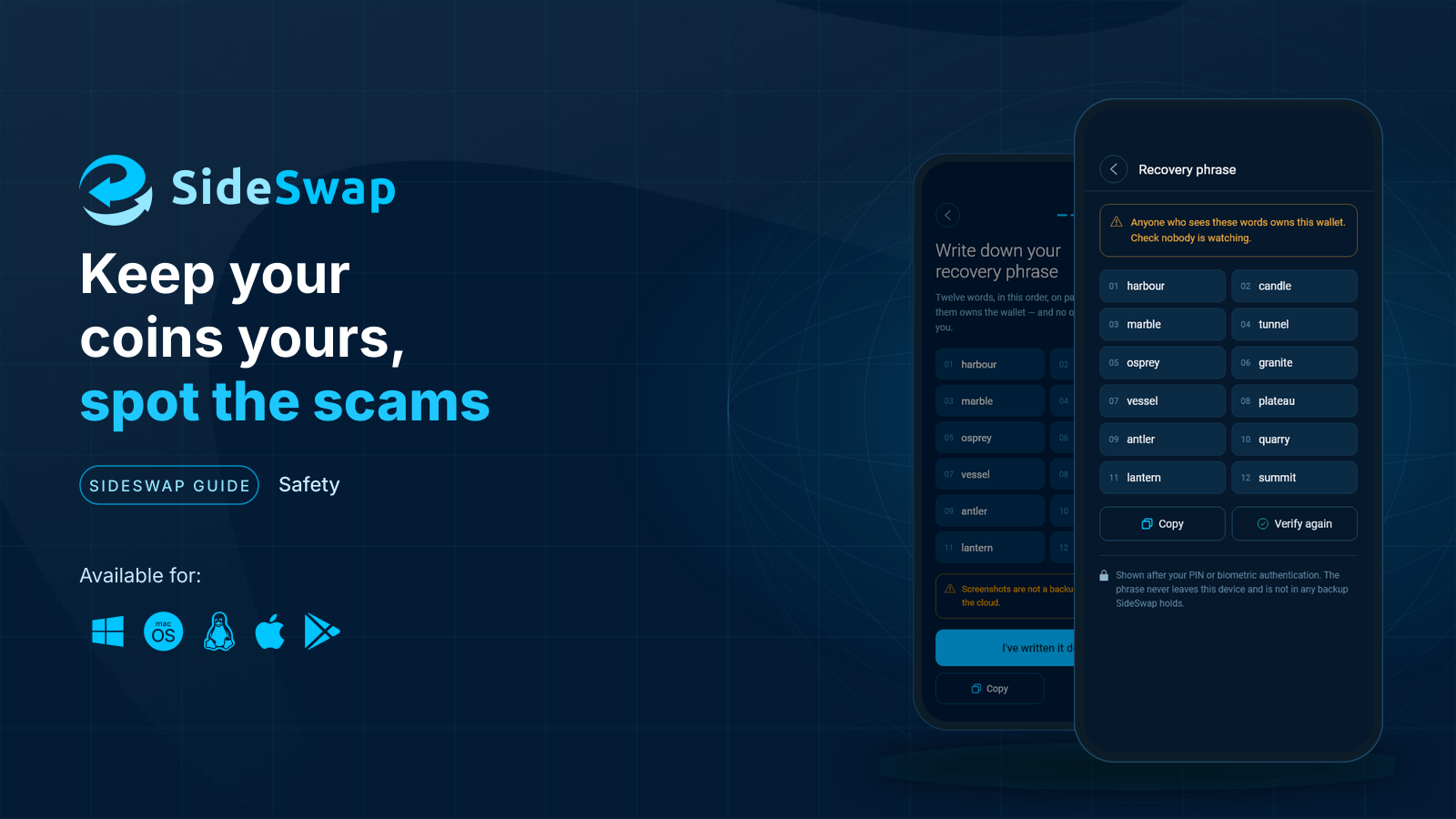
Staying safe
Spot fake support and copycat sites, and why a sent transaction cannot be reversed.