
At a glance
Check who is asking
Every request names the website at the top and again at the bottom. If it is not the site you are using, or you did not start what it asks, reject it.
A trade or a swap
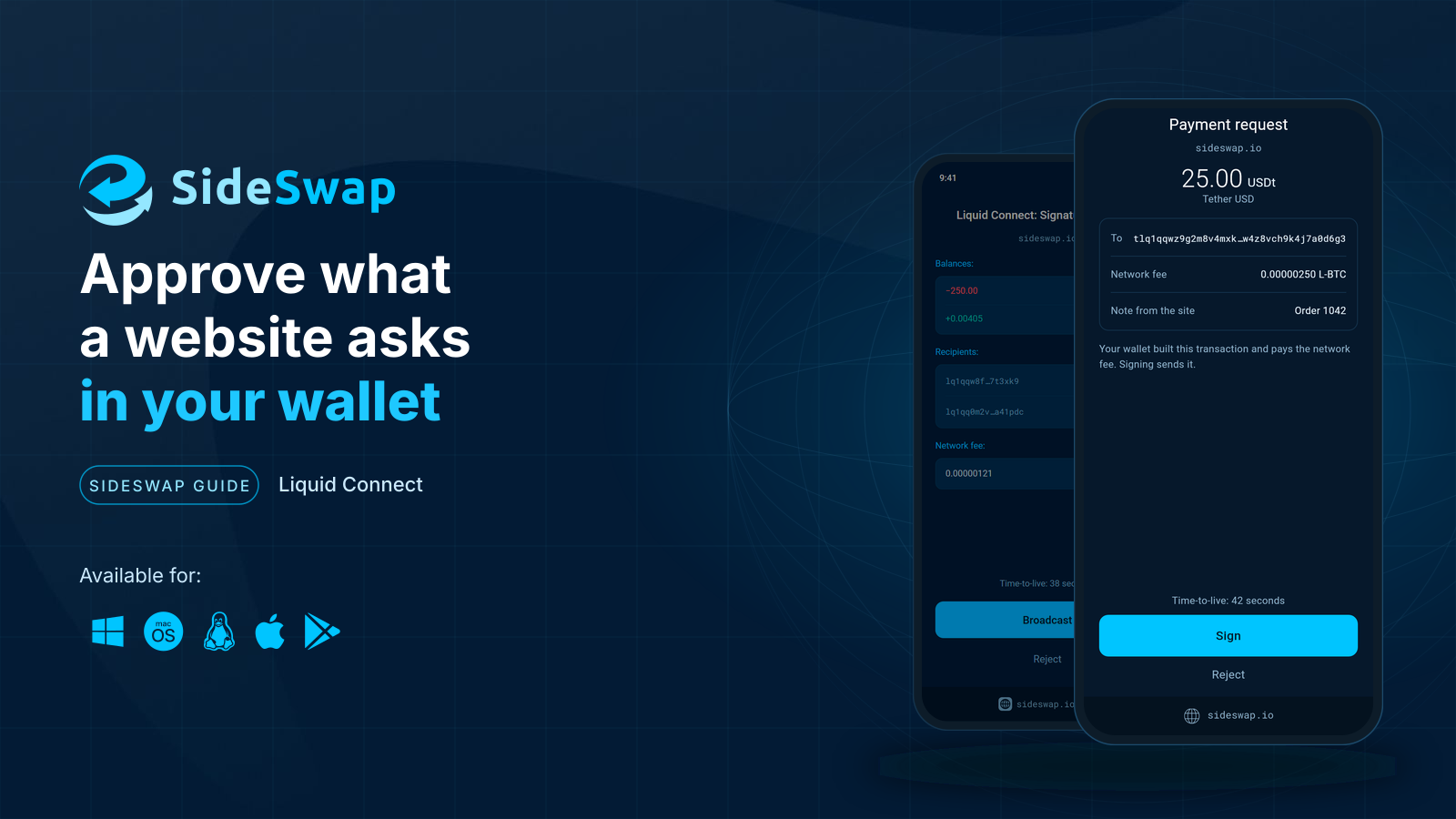
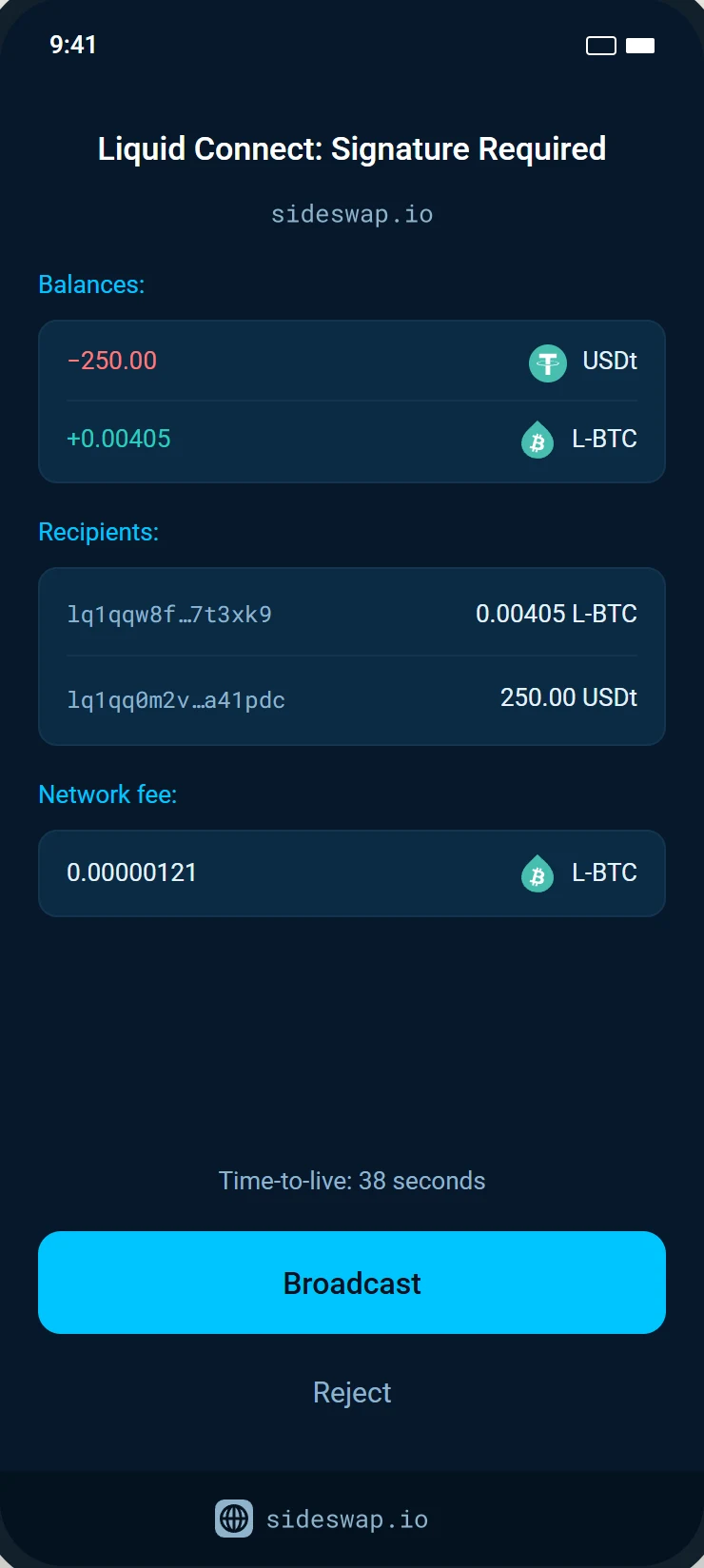
When you swap or place an order on a website, your wallet shows Signature Required. Check three things.
Balances is what the trade does to your wallet, what leaves and what arrives. Recipients lists every output of the transaction, including the change that comes back to you, so the two lists do not add up to each other. Network fee is the fee for the transaction.
If Balances matches what the website showed, approve with the button below. Its label says what approving does. Otherwise tap Reject.
A payment
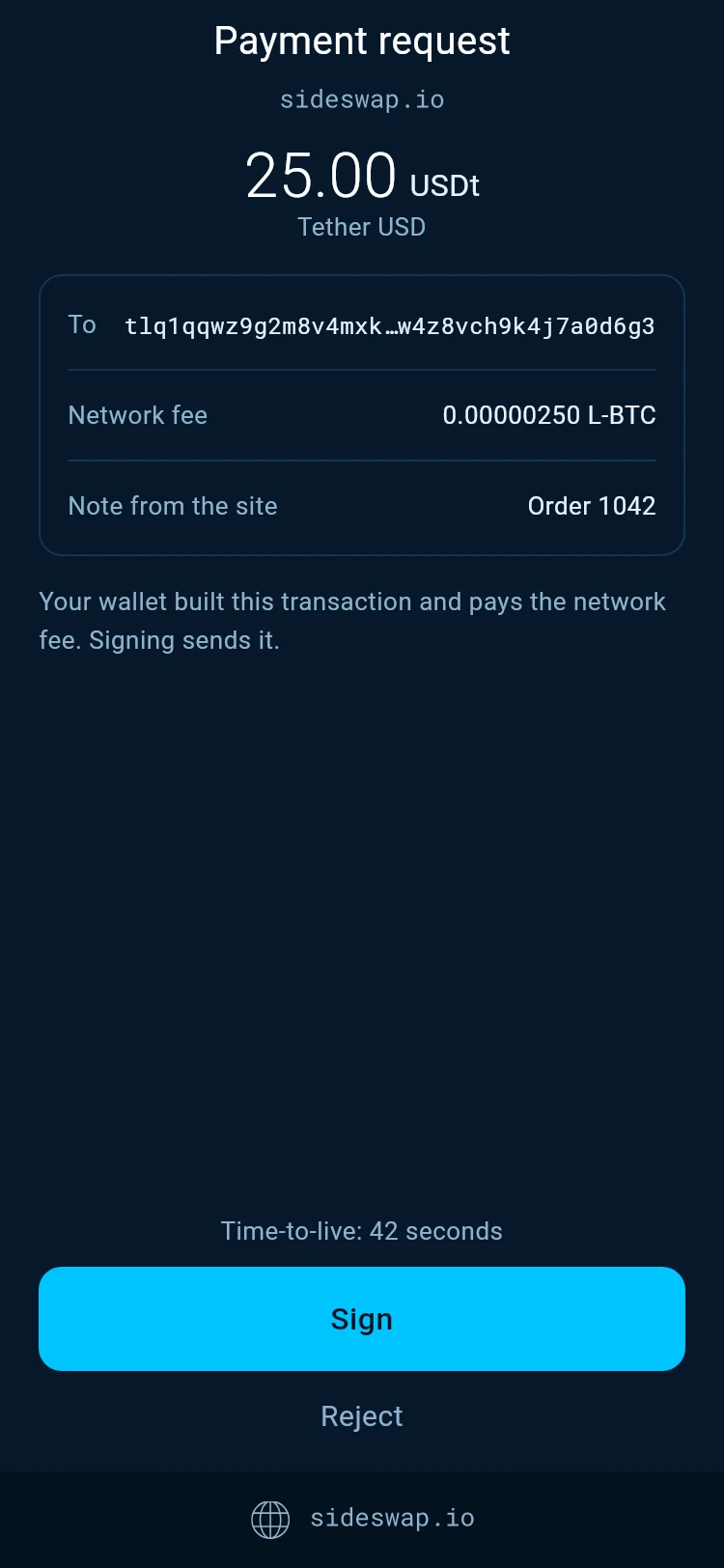
A website can ask you to pay, for example a shop or a service. The request shows the amount, who receives it, the network fee and any note from the site. Your wallet built the transaction itself and pays the network fee.
Tap Sign to send it, or Reject.
A sign-in
Some websites ask you to sign a short message to prove the wallet is yours, for example to log in. No transaction is involved and nothing is broadcast. The signature only proves that your wallet holds its Liquid Connect key.
When a request ends without you
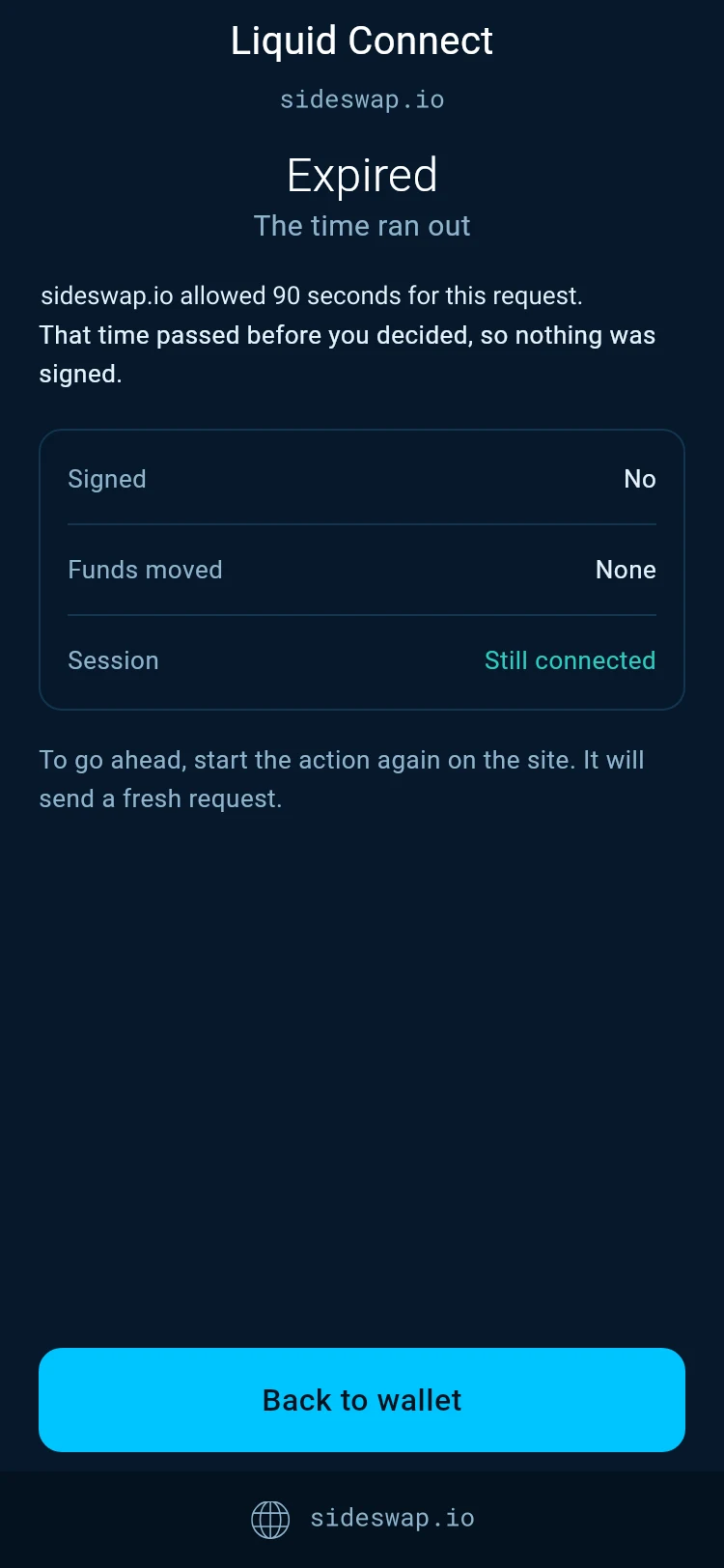
Expired
Each request has its own time limit. When it runs out, nothing was signed, no funds moved and the website stays connected. To go ahead, start the action again on the website. It sends a fresh request.
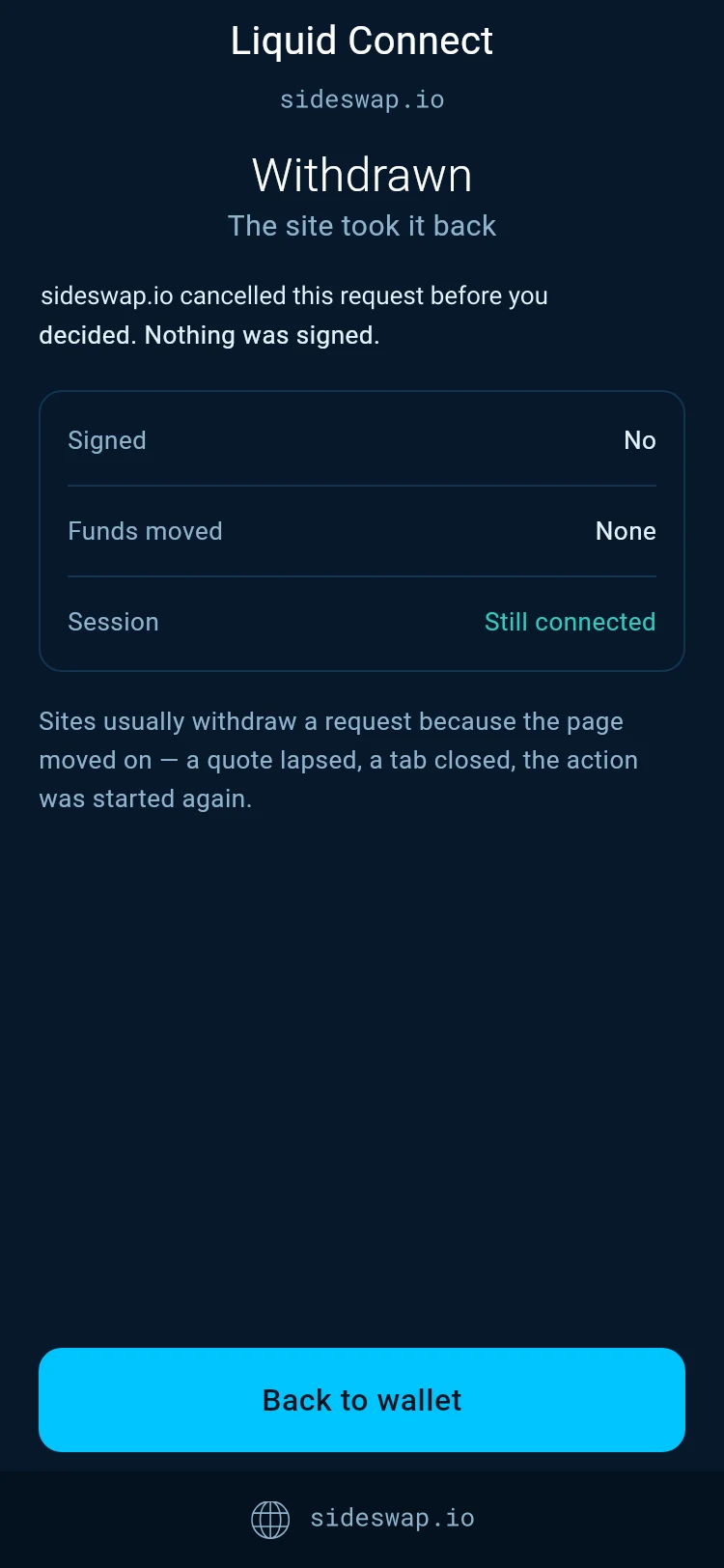
Withdrawn
The website took the request back before you decided. Nothing was signed. Sites usually do this because the page moved on, a quote lapsed, a tab closed or the action was started again.
Autosign
For a website you approved on this device, you can let small requests sign themselves. Turn on Autosign under 100 USDT for that site under Liquid Connect, Websites. Requests below the limit then sign without asking and without a notification.
A request worth more than the limit still asks you, and so does any request the wallet cannot put a value on. Websites approved on another device always ask.
Use it for sites you use often
Autosign is for a site you trust and trade on regularly. You can turn it off again at any time.
Good to know
In the desktop app
Requests appear in the bell menu under Needs your answer. A connection you just started on a website opens by itself. A request that ended stays in the menu as a short note until you dismiss it.
Rejecting is always safe
Rejecting signs nothing and moves nothing. The website can ask again if you change your mind.
Connecting first
Requests come only from websites you connected. See Connect your wallet to a website.
Look your transaction up first. If it still looks wrong, write to support with the Bitcoin transaction ID.
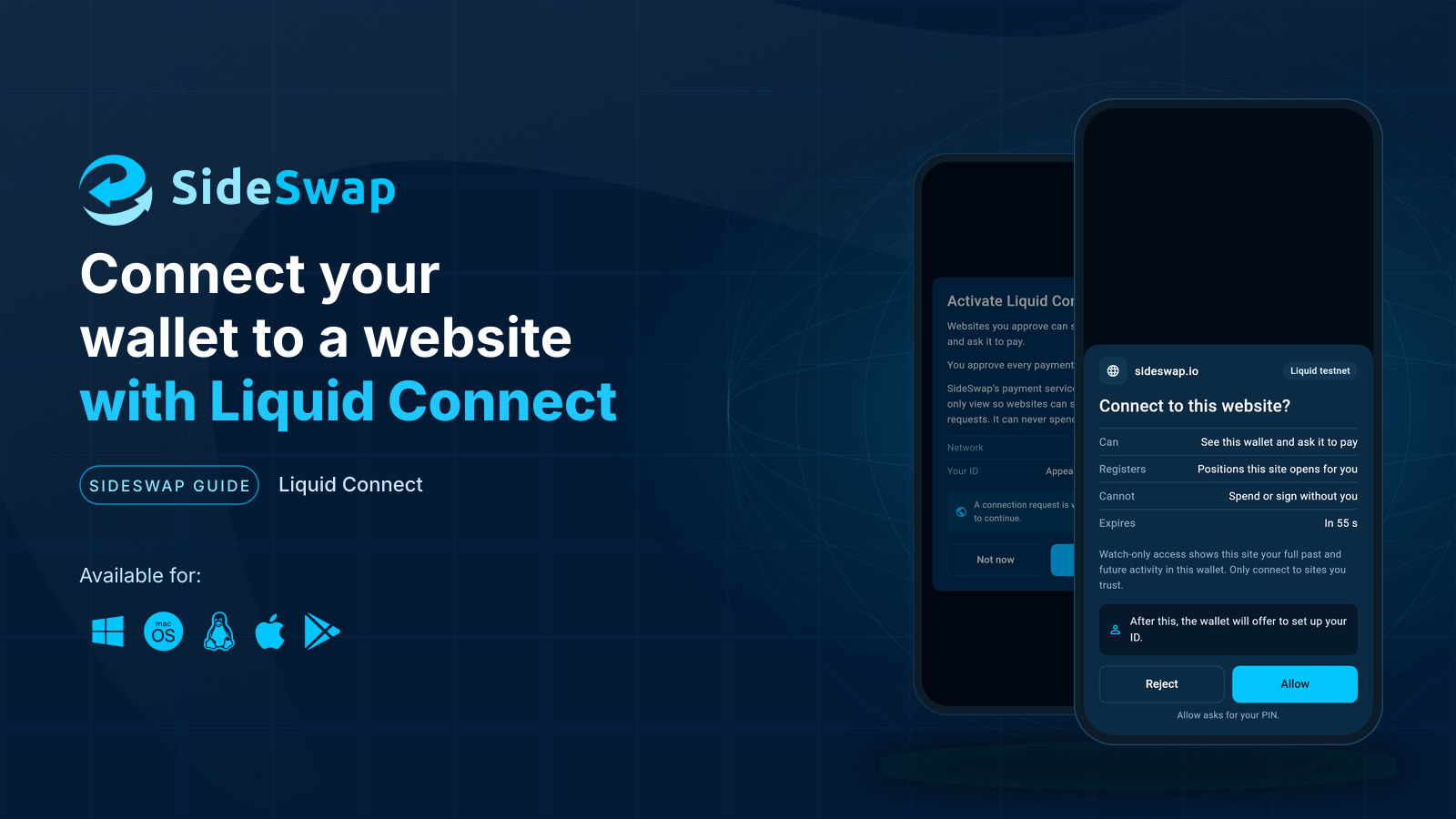
Connect your wallet to a website
What Liquid Connect is, what one approval gives a website and what it never can.
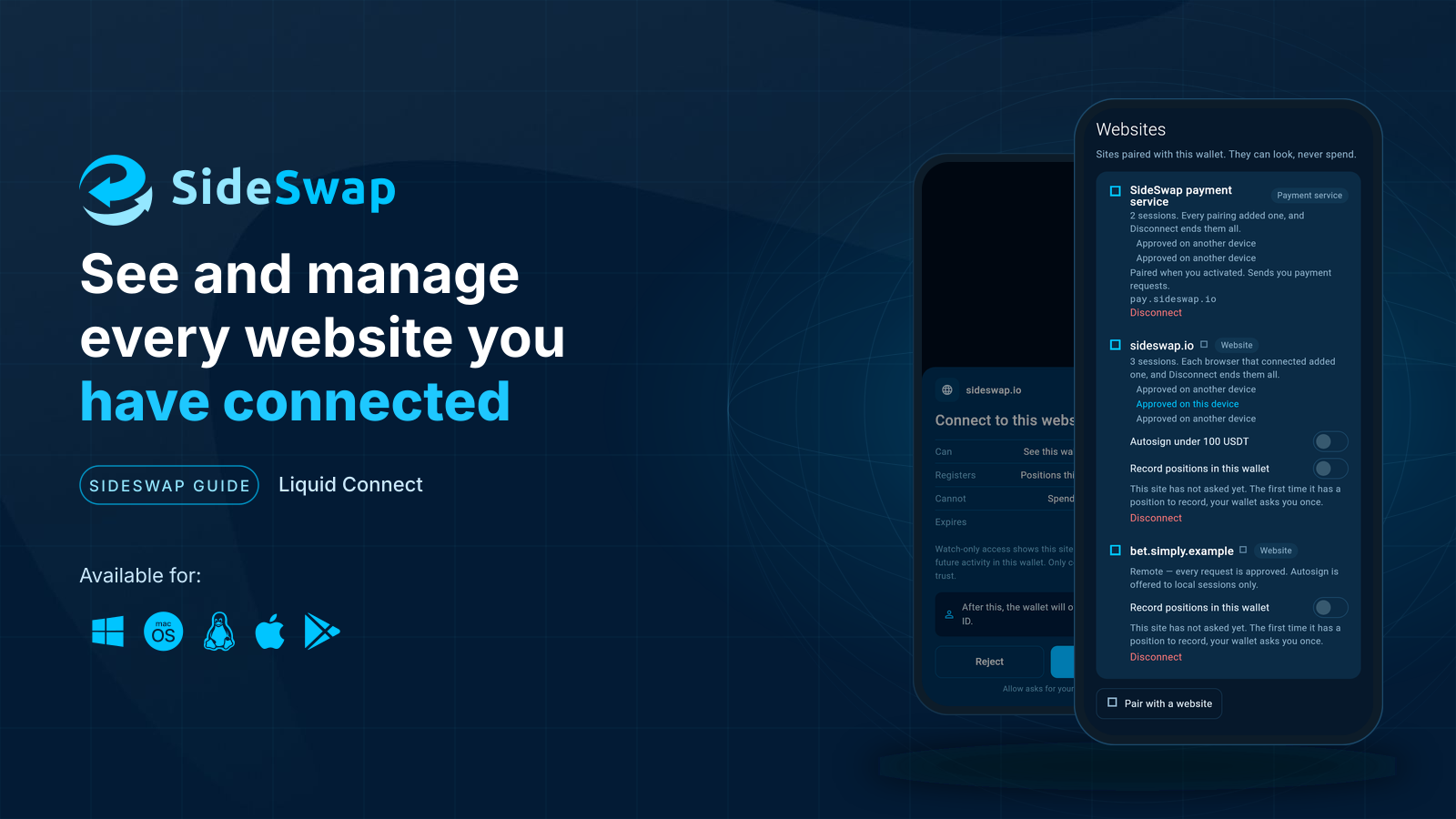
Manage connected websites
See which websites are connected and disconnect any of them.
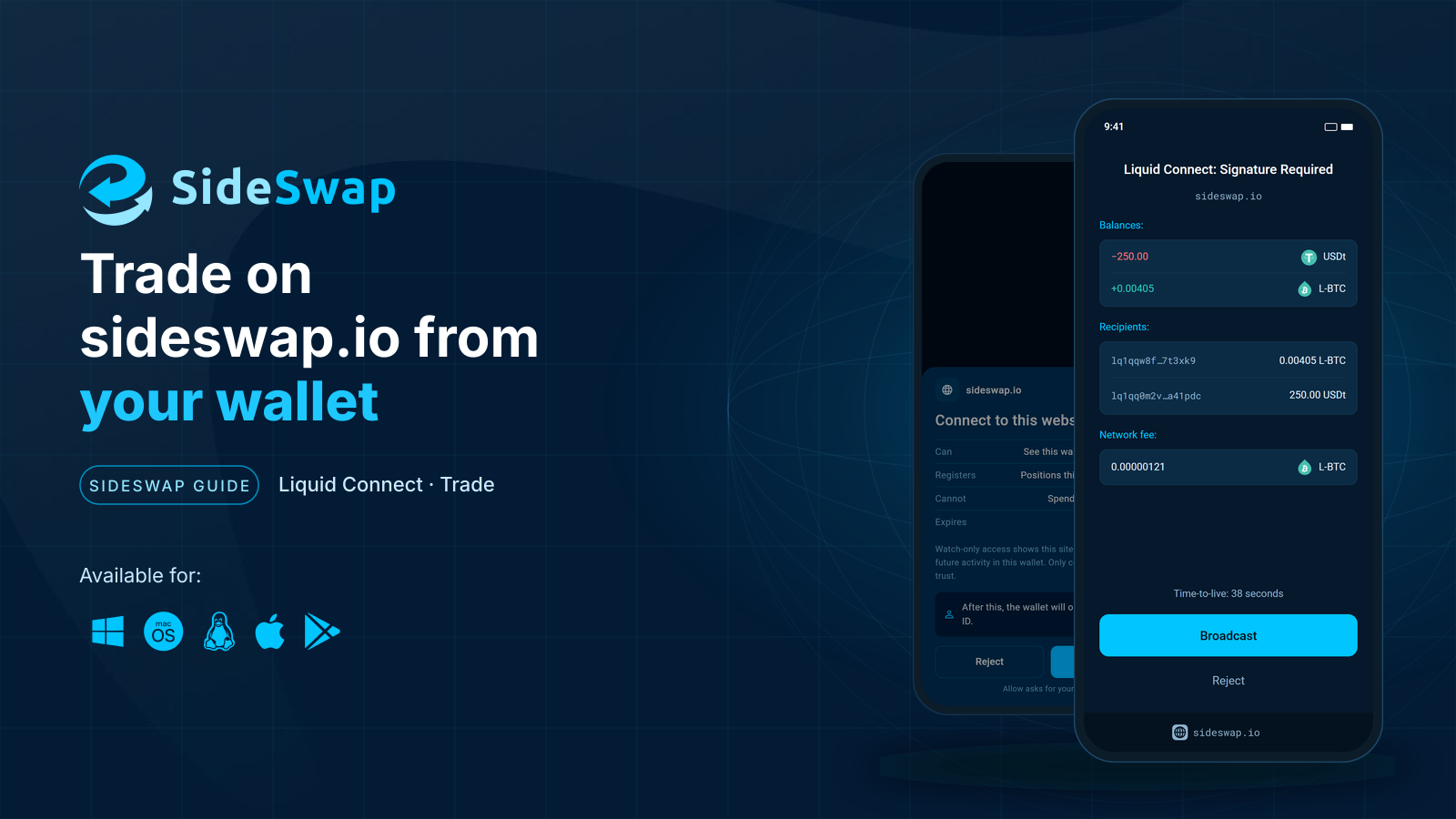
Trade on sideswap.io from your wallet
Swap at market or place limit orders on sideswap.io and approve every trade in your wallet.
Staying safe
Spot fake support and copycat sites, and why a sent transaction cannot be reversed.