
At a glance
Before you start
- A SideSwap wallet. New to SideSwap? Start with Get started.
- The website and your wallet on the same network. A page on testnet needs a wallet on testnet.
- A website you trust. Connecting shares your full history with it.
How it works
You start on the website and finish in your wallet. The website never gets your keys. It sends requests, and your wallet shows each one for you to approve.
Liquid Connect carries requests, not keys. A request travels from the website to your SideSwap app, and signing happens inside the app, on your device, with keys that never leave it. The website and the relay in between only ever see the request and the signed result.
Step by step
Activate Liquid Connect
The first time, your wallet asks you to activate Liquid Connect. You can also start it from the Liquid Connect card on Home. Activating gives SideSwap’s payment service a watch-only view, so websites can send you requests. It can never spend or sign. If a website is already waiting, the wallet says so. Tap Activate.Activate Liquid Connect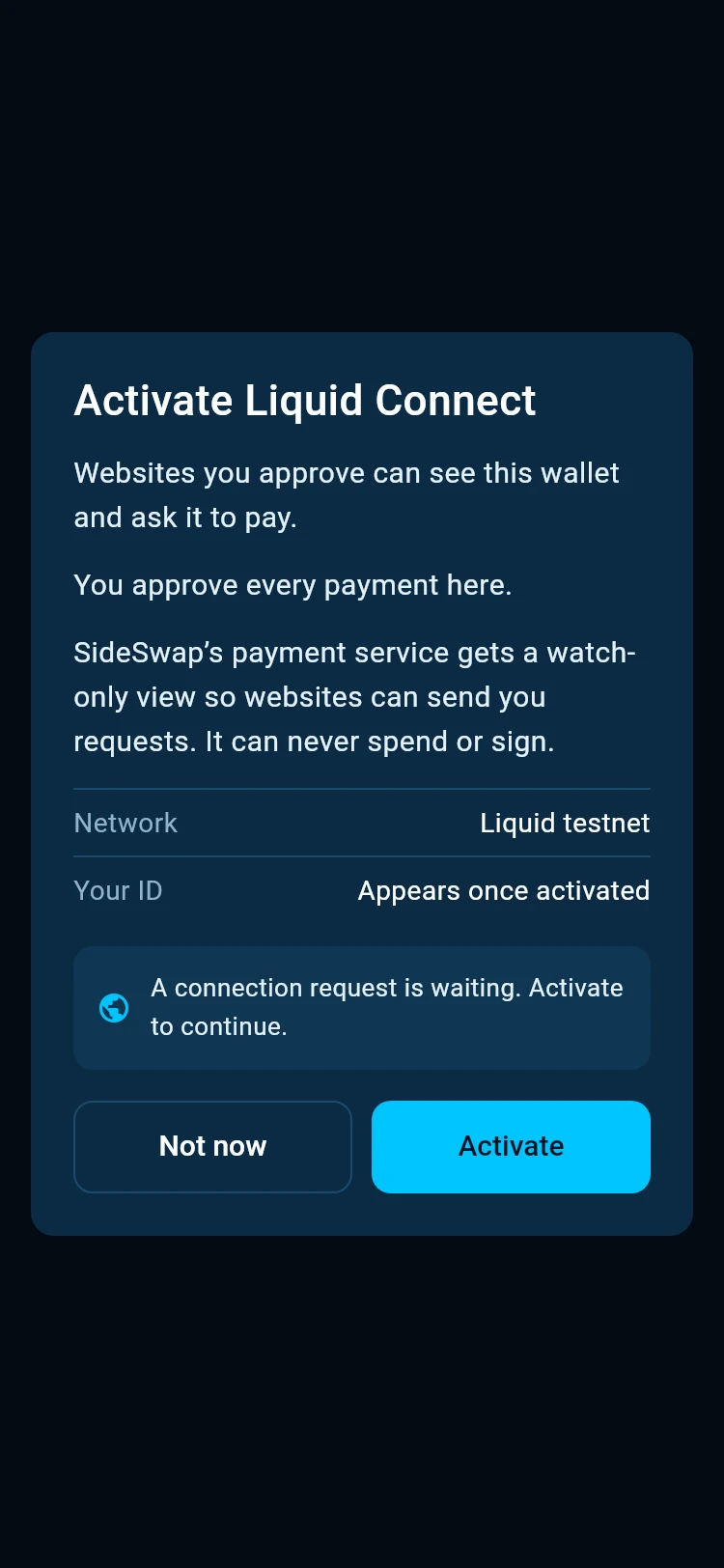
Click Connect wallet on the website
On sideswap.io or another website that supports Liquid Connect, click Connect wallet. On a computer, choose Desktop to open the SideSwap app on that computer, or Mobile to scan a QR code with the app on your phone. On a phone, the link opens the app and brings you back afterwards.Check the request
Your wallet shows the site and its network, then what the site can do. It can see this wallet and ask it to pay, it records positions it opens for you, and it cannot spend or sign without you. The request expires after the time shown.Connect to this website?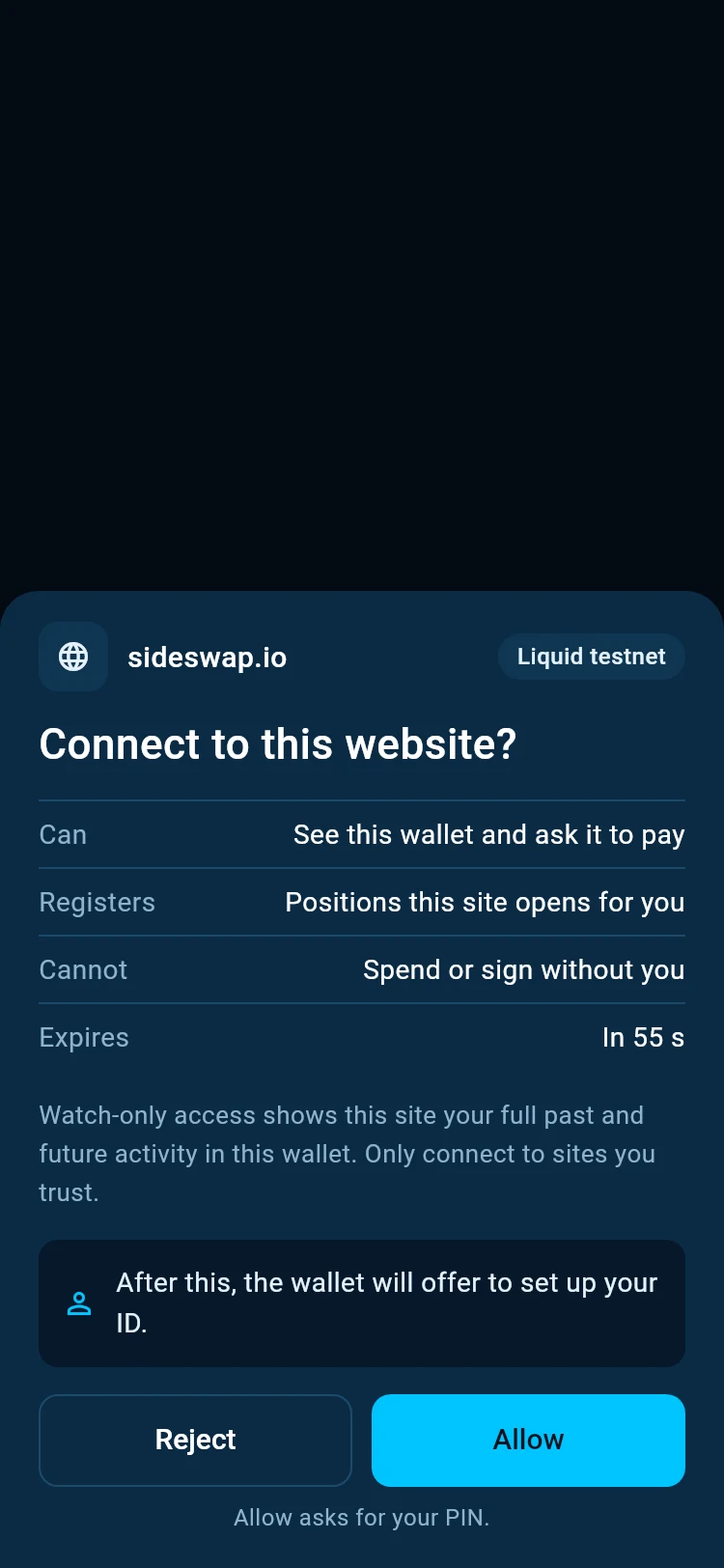
Allow
Tap Allow if the site is the one you are on. If you use a PIN, Allow asks for it. The website now shows your balances. Tap Reject if you did not start this or do not trust the site.You can be paid now
On Liquid testnet, after your first website, the wallet tells you it is in the directory. Anyone with your Wallet ID can now send you Liquid assets. Tap Set up to add a handle and contacts, or Not now. You can pick this up later under Liquid Connect, see Get paid with a handle. Liquid mainnet has no directory yet, so this step does not appear there.You can be paid now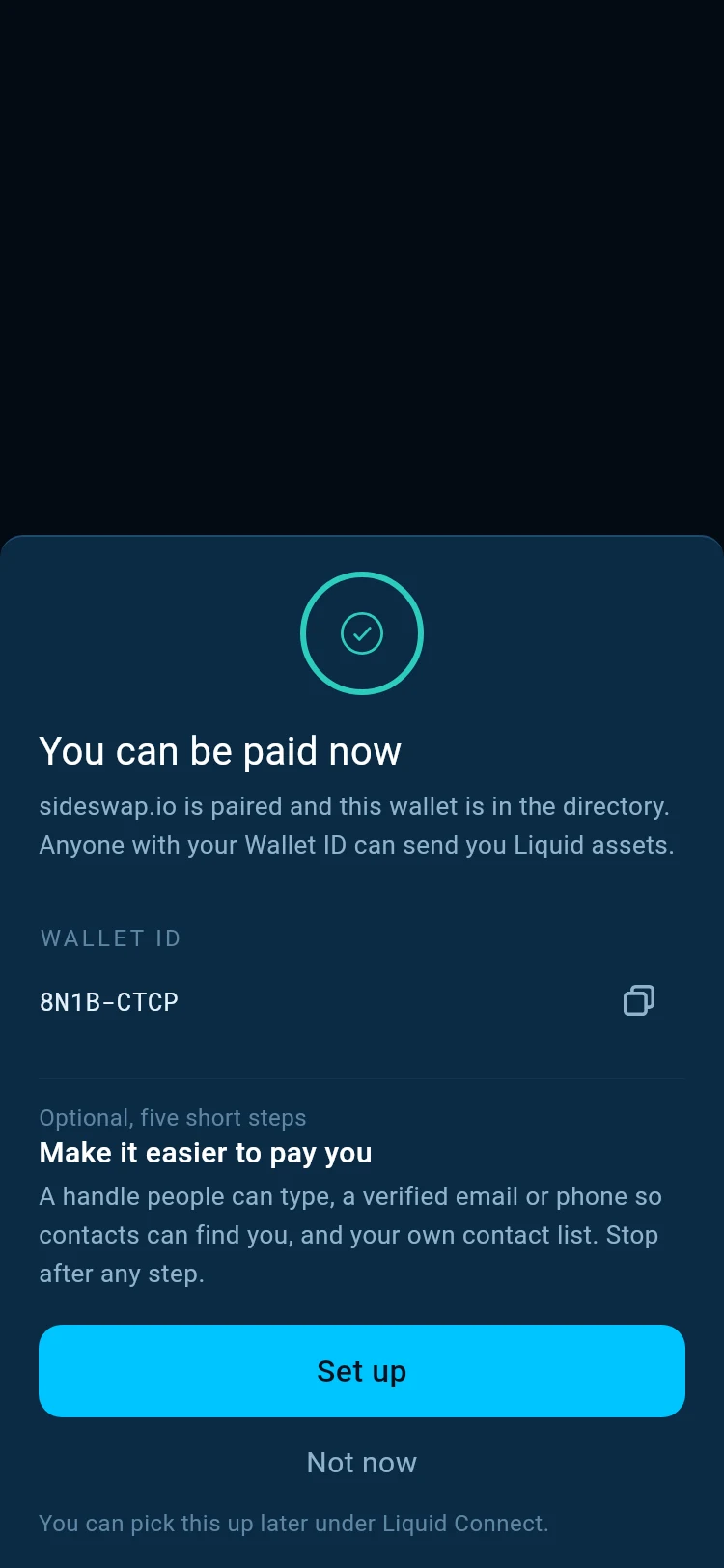
What a website sees
Connect only to sites you trust
Watch-only access shows a site your full past and future activity in this wallet. Disconnecting stops a website’s requests, but a site that has seen these keys can keep following the wallet’s activity.
Good to know
Approve only what you started
On a computer, a connection you just started on a website opens in the wallet by itself. Anything you did not start yourself, reject.
The request expired
Each request stays open for a short time, shown on the website and in the wallet. If it runs out, click Connect wallet again.
The wallet could not accept the request
The website and the wallet are probably on different networks. Switch the wallet to the website’s network and connect again.
Not now
If you tap Not now when asked to activate, the website is told and nothing is shared. You can activate later from Home.
More than one website
You can connect several websites at the same time. Each one is listed by itself in the wallet and is ended by itself.
Disconnect
Your connected websites are listed under Liquid Connect in the wallet. Disconnect any of them there, or all at once.
Your recovery phrase
No website needs your recovery phrase, and nobody from SideSwap will ever ask for it. Anyone who asks for it is trying to steal from you.
Look your transaction up first. If it still looks wrong, write to support with the Bitcoin transaction ID.
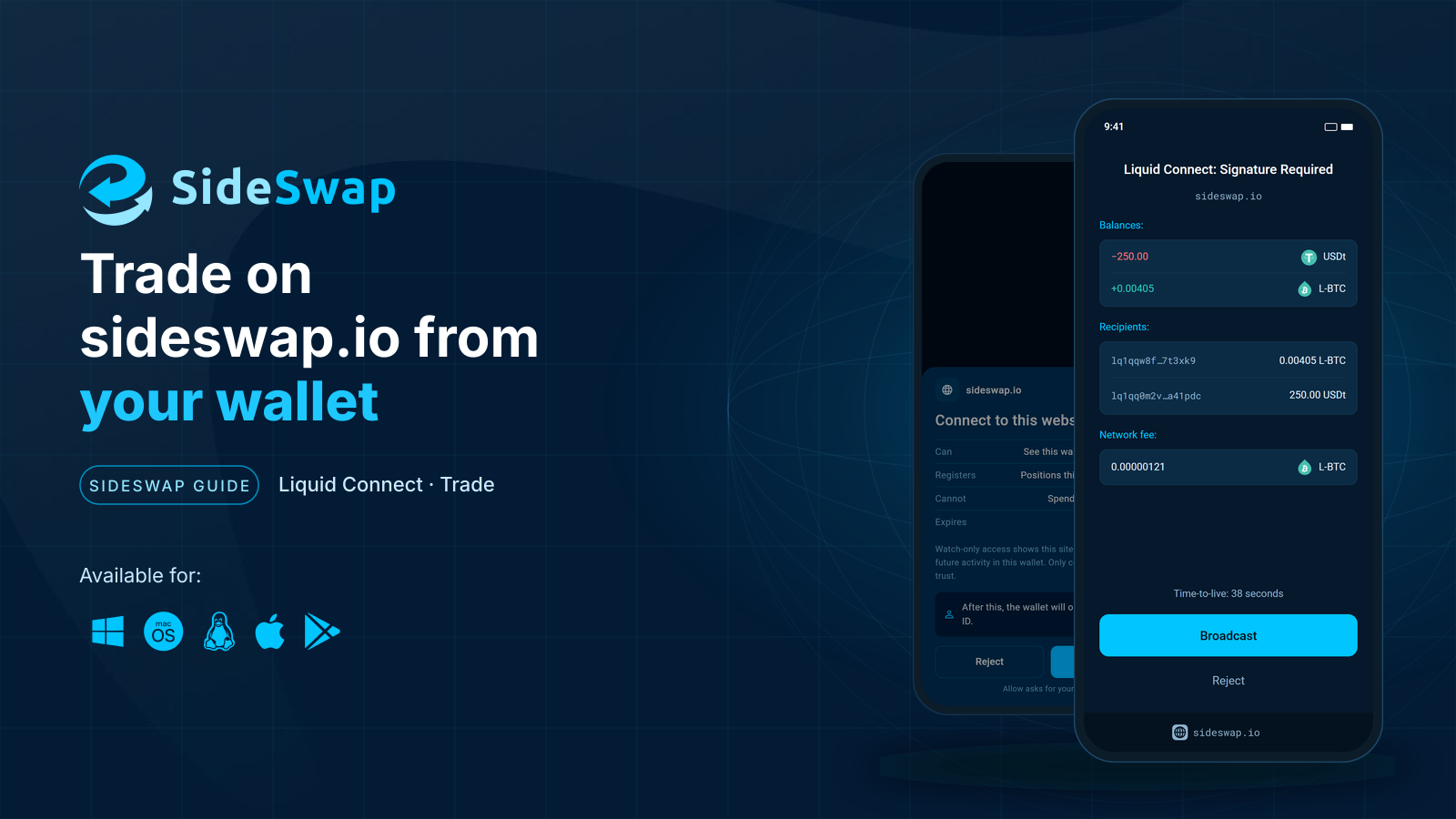
Trade on sideswap.io from your wallet
Swap at market or place limit orders on sideswap.io and approve every trade in your wallet.
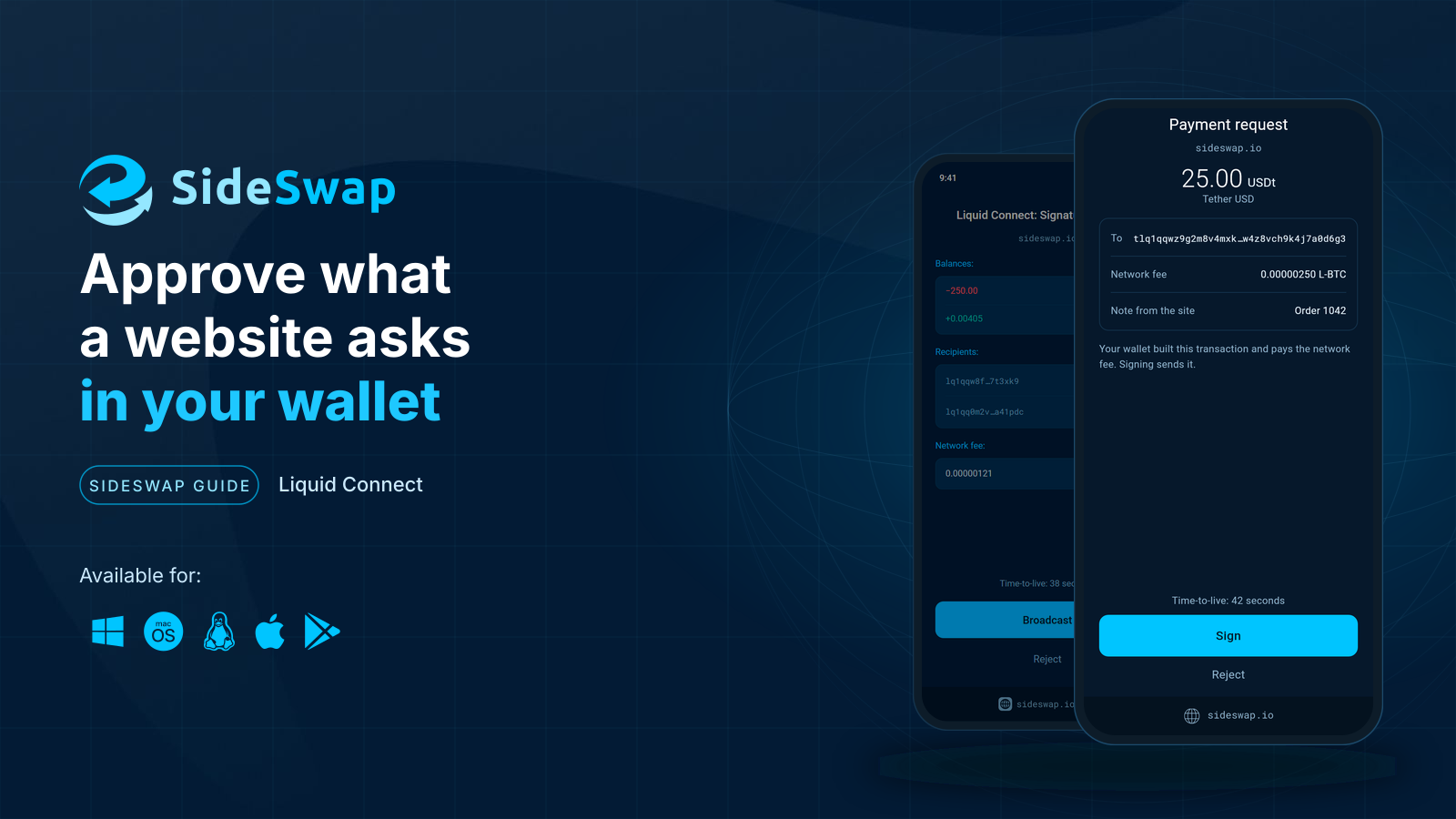
Approve what a website asks
Read a signature request, see what leaves and what arrives, and let small trades sign themselves.
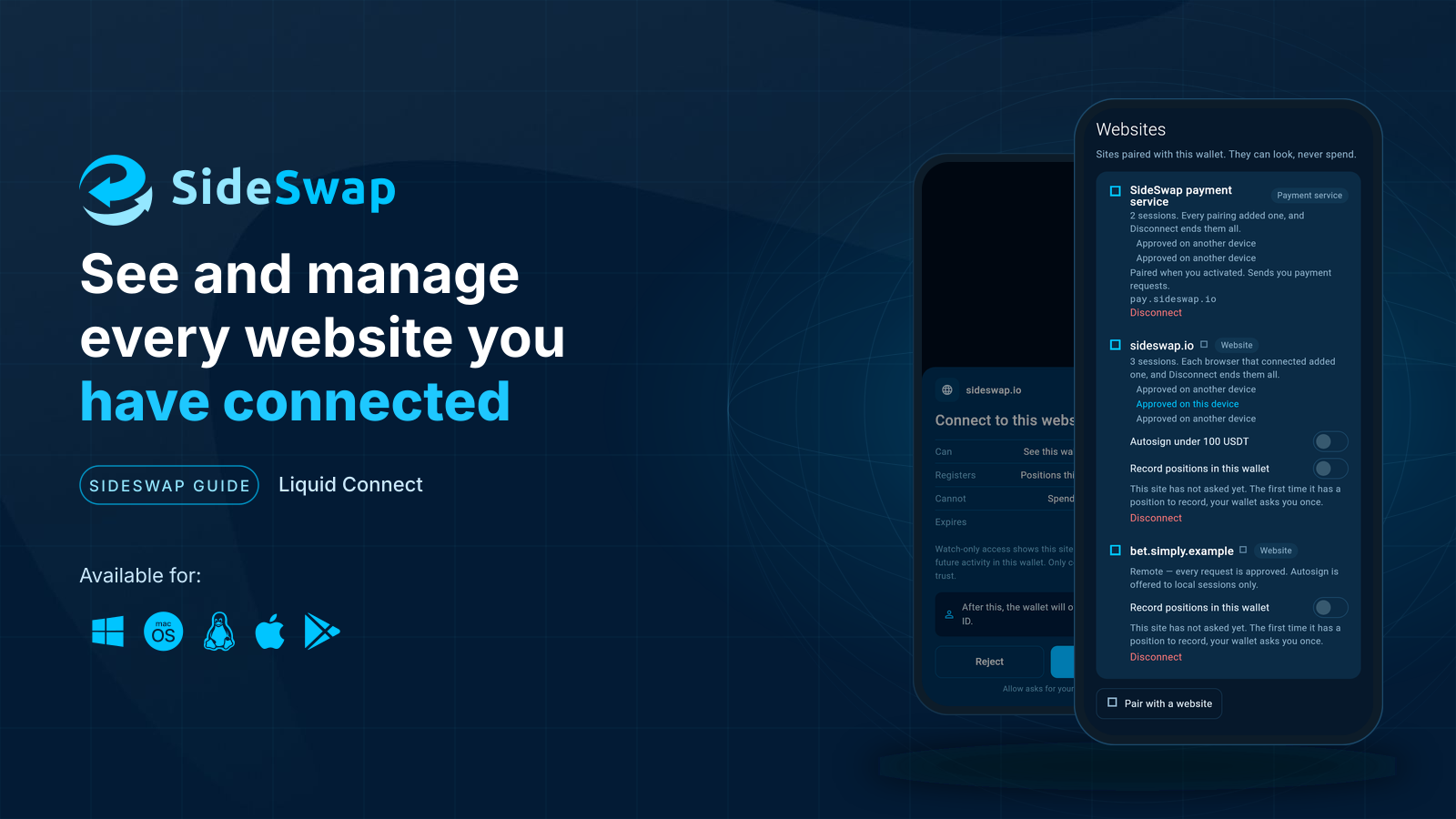
Manage connected websites
See which websites are connected and disconnect any of them.
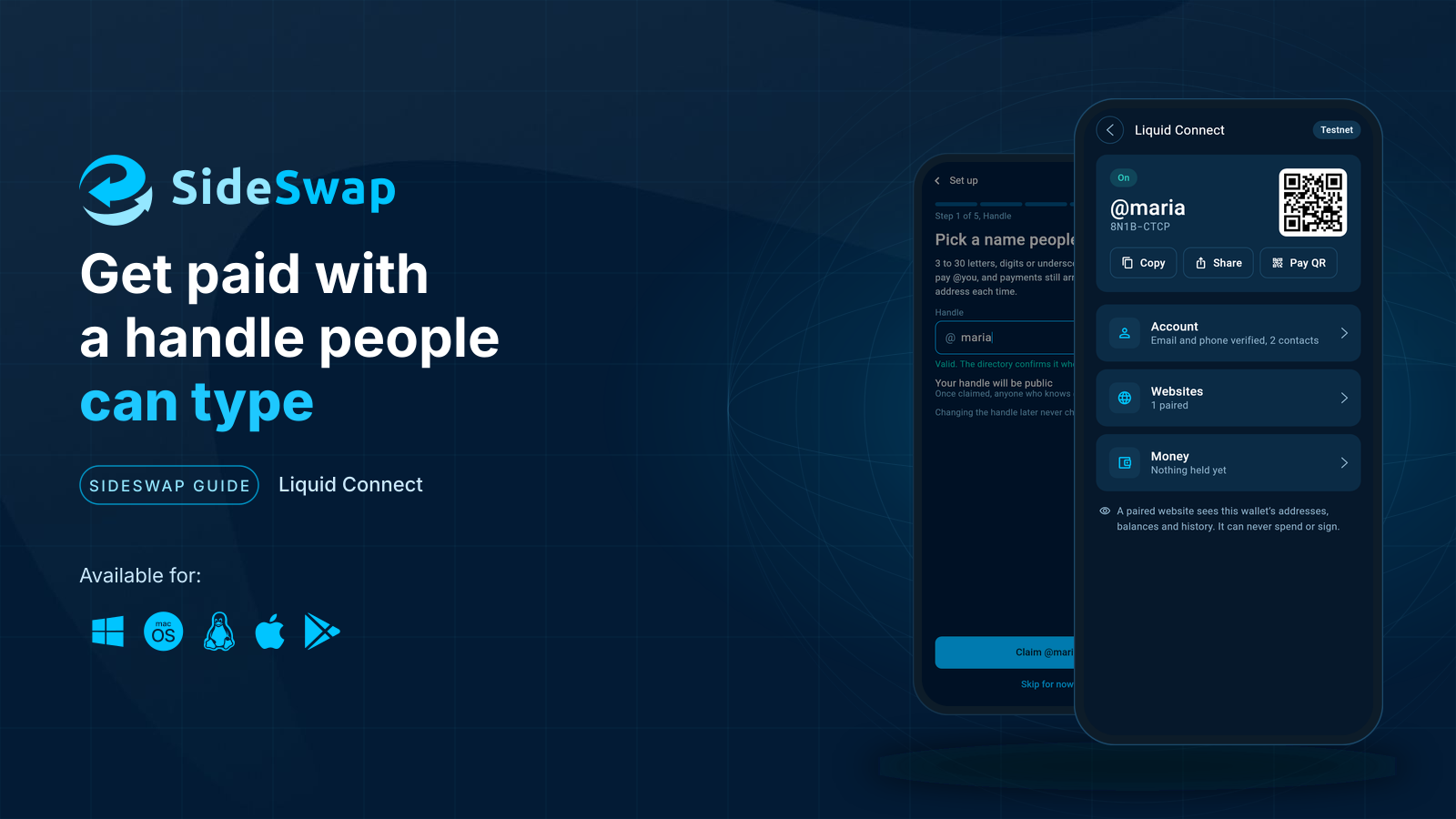
Get paid with a handle
Choose a handle, verify your email or phone and get paid without sharing an address.