
At a glance
Before you start
- Liquid Connect activated on Liquid testnet. See Connect your wallet to a website.
- A verified email or phone number and Let contacts find me switched on, so people who know you can find you. See Get paid with a handle.
- The people you want to pay on SideSwap with Liquid Connect too, with the email or phone number you know them by verified.
How it works
Adding someone is half of it. They become a contact you can pay once they have added you back. Until then they wait in your Contacts and do not appear in Pay, so you never pick someone who cannot be paid.
A contact has no saved address. When you pay, your wallet asks theirs for a fresh address at that moment, so nothing is reused and nothing goes stale.
Step by step
Check your address book
In the wallet, open Liquid Connect, then Account. Contacts are at the bottom, and the last step of Set up is the same. Tap Check my address book. Emails and phone numbers from your address book go to the directory to be matched, without names. The wallet says how many people it paired you with.Contacts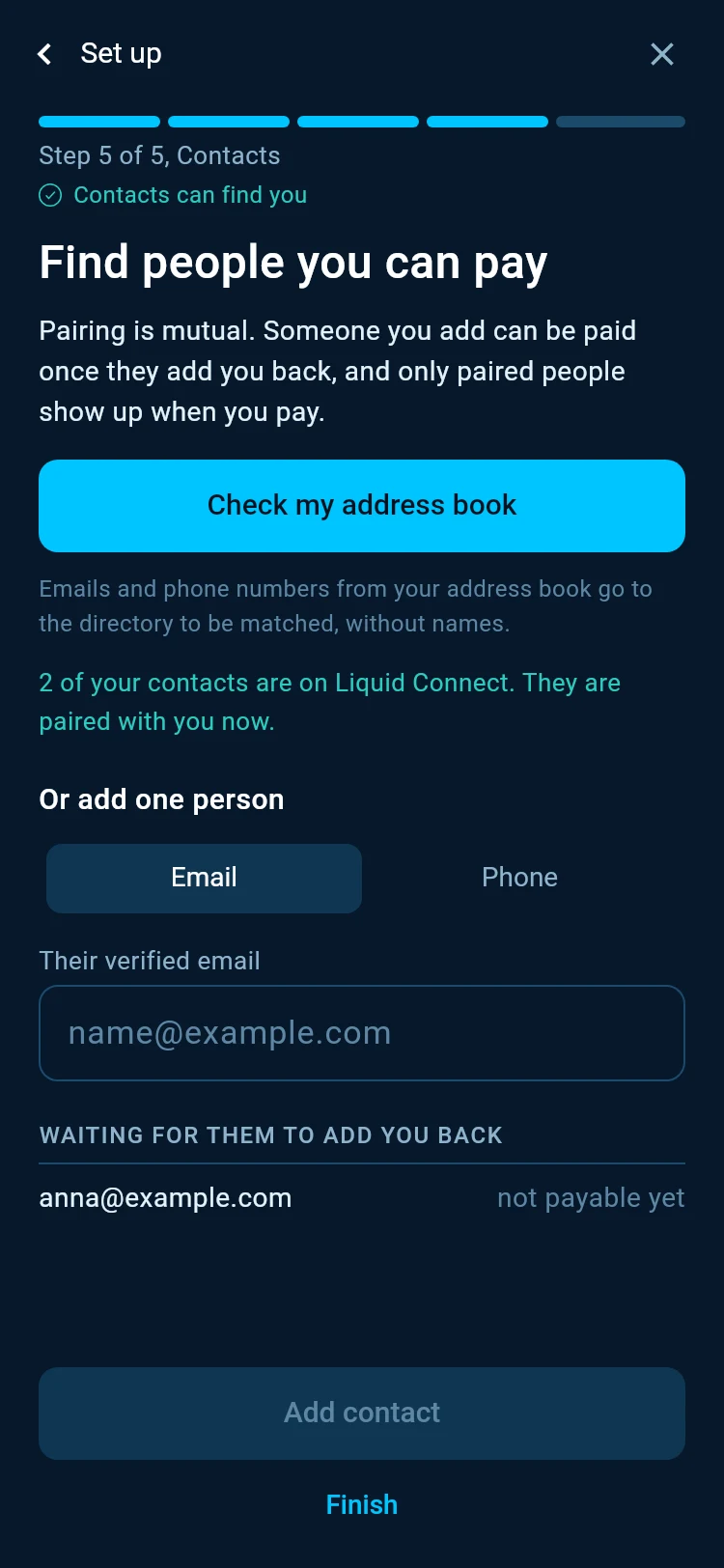
Add one person
For someone who is not in your address book, choose Email or Phone, type what they verified and tap Add contact. What you type goes to the directory as it is, without a name. They show under Waiting for them, not payable yet, until they add you back.Contacts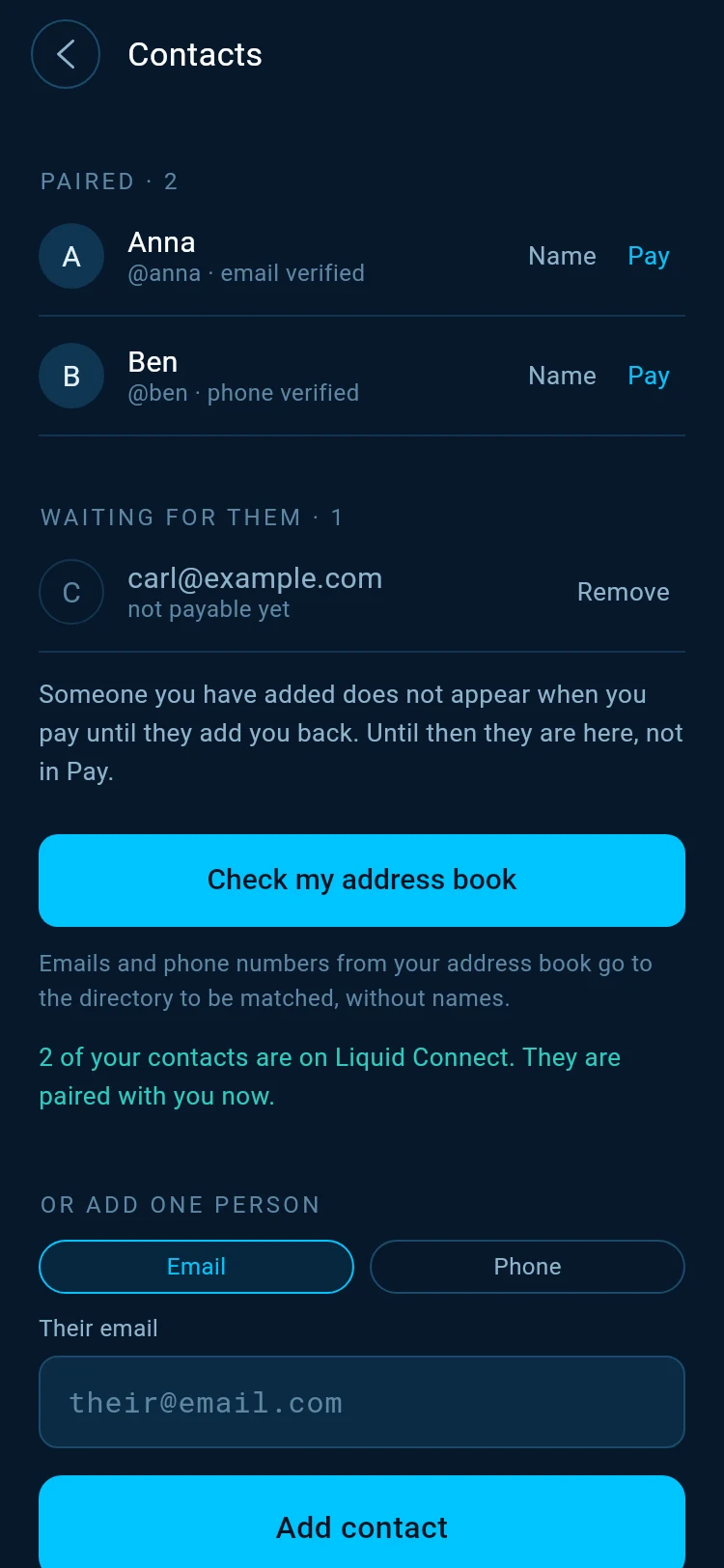
When they add you back
Your phone tells you with a New contact notice, saying Anna is on Liquid Connect and you can pay them now. They move to Paired. Tap Name to give a contact a name only you see, kept on this device.Pay a contact
Open Pay in the wallet. Your paired contacts are listed under the field. Tap a name, or tap Pay next to them in Contacts. The wallet asks their wallet for a fresh address and goes straight on to the amount.Pay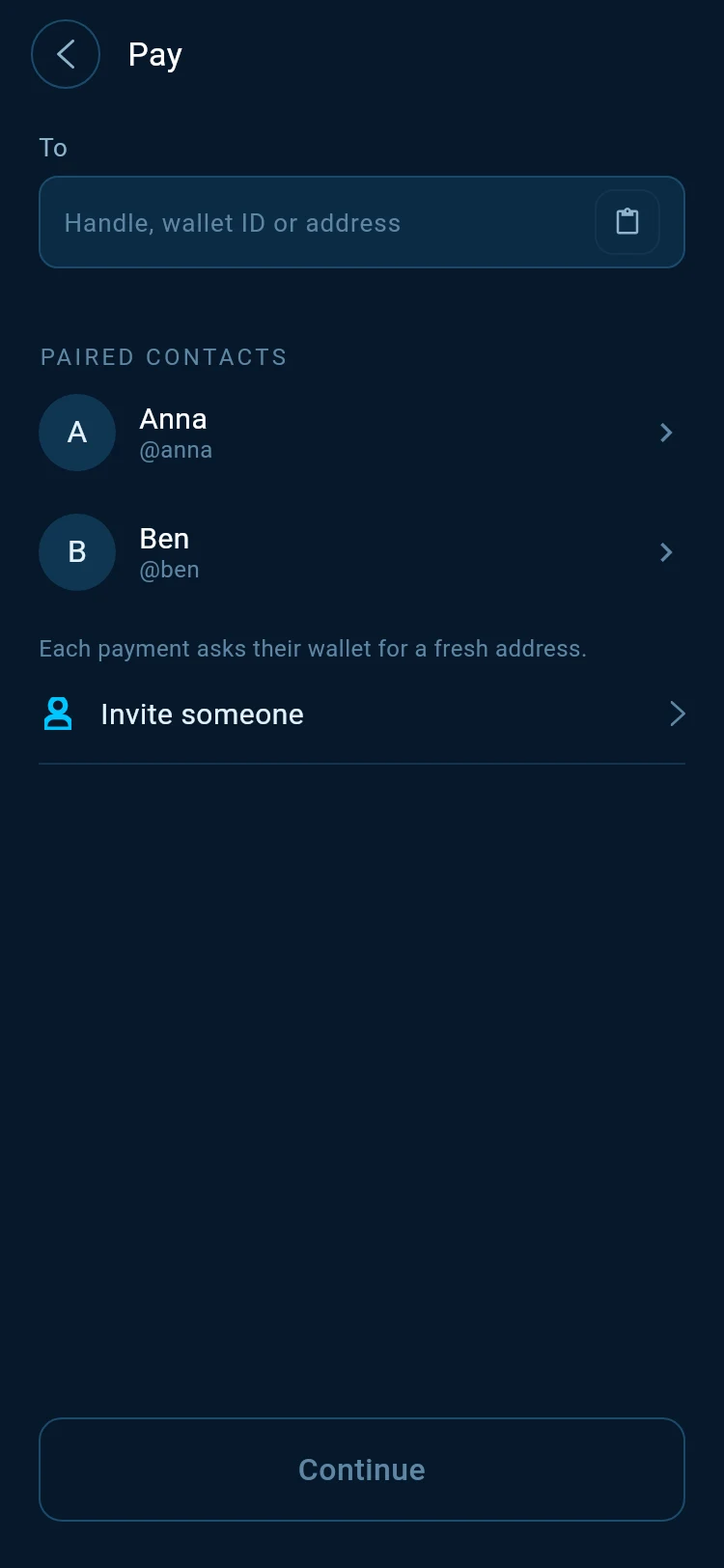
Send
Enter the amount and confirm as for any payment. The contact’s name stays on every step, on the confirmation and on the receipt, so you never have to read an address. When the payment arrives, your phone tells you it reached Anna, and Anna’s phone tells her who paid and how much, by the name her phone knows you by.
Good to know
Typing a handle in Pay
Pay takes the handle of a paired contact. For anyone else it says there is no paired contact with that handle. Add them in Contacts first, or ask them for their pay QR or pay link. Tapping the name under Paired contacts is the quickest way to pay a contact.
Their wallet is offline
Each payment needs a fresh address from your contact’s wallet. If the wallet says their wallet is offline, ask them to open SideSwap, then try again.
Someone never adds you back
They stay under Waiting for them. Tap Remove to take them off your list.
On a computer
Checking your address book happens on your phone. In the desktop app you can add one person by email or phone, and your paired contacts appear when you send.
Look your transaction up first. If it still looks wrong, write to support with the Bitcoin transaction ID.
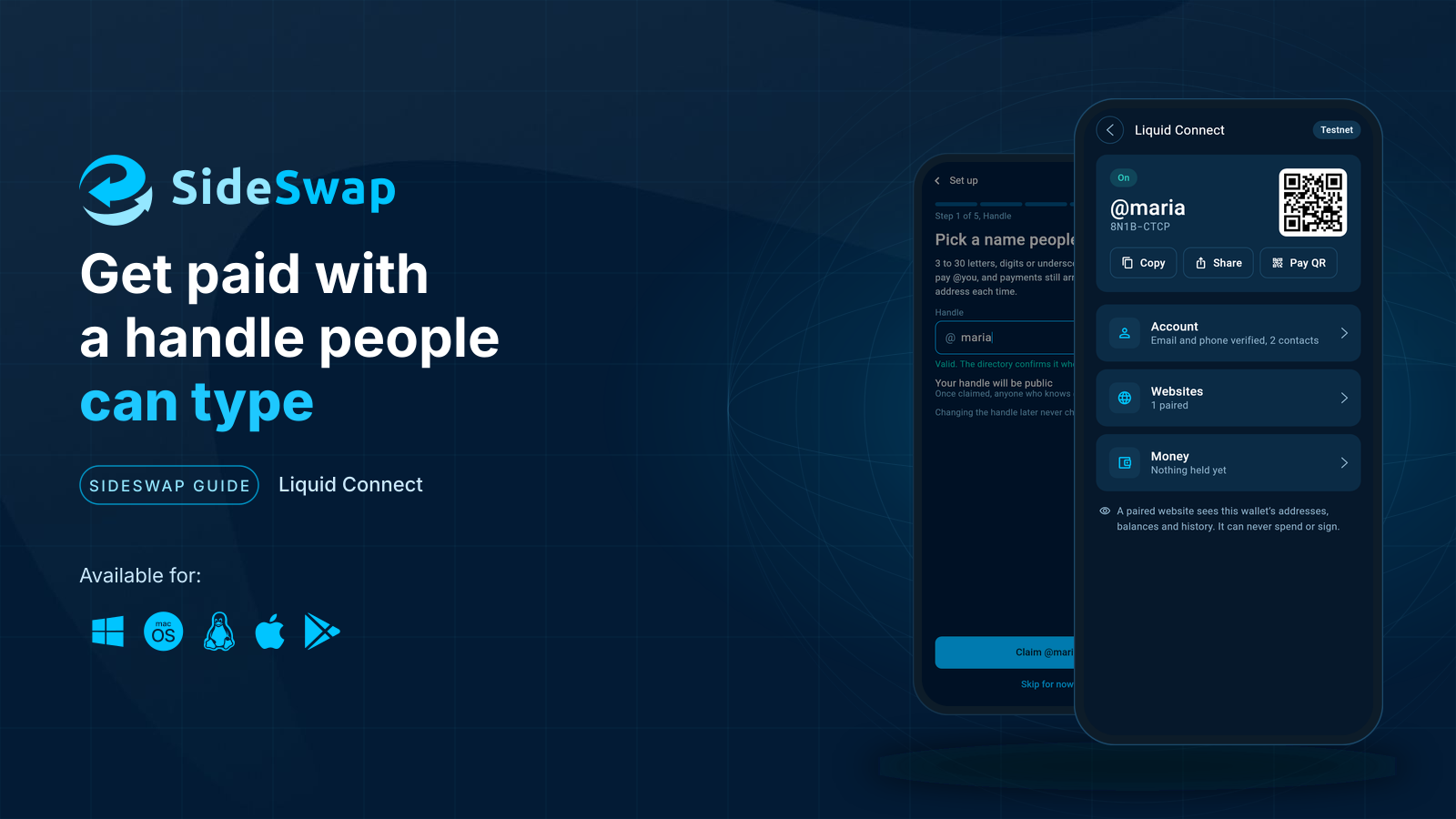
Get paid with a handle
Choose a handle, verify your email or phone and get paid without sharing an address.
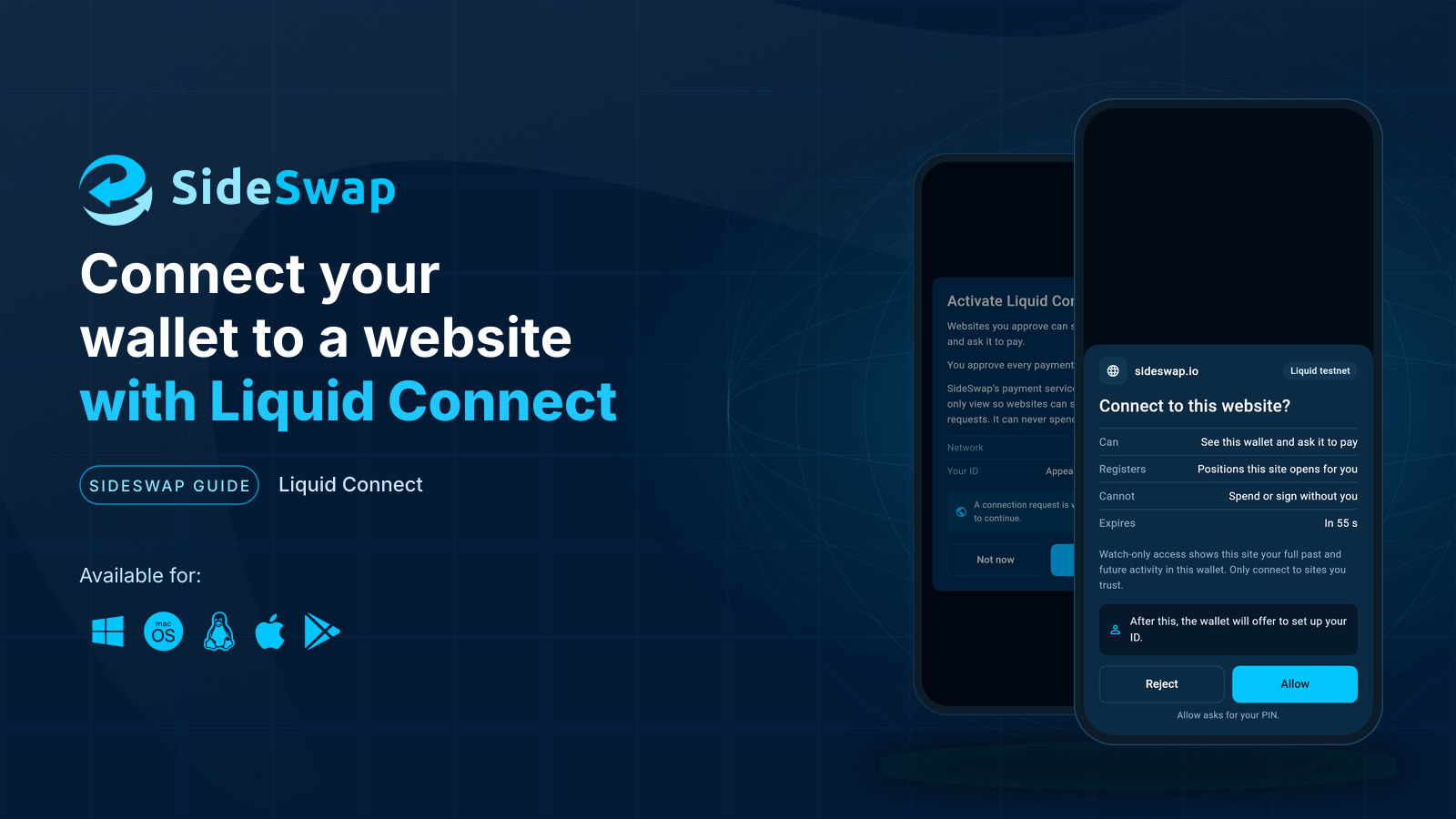
Connect your wallet to a website
What Liquid Connect is, what one approval gives a website and what it never can.
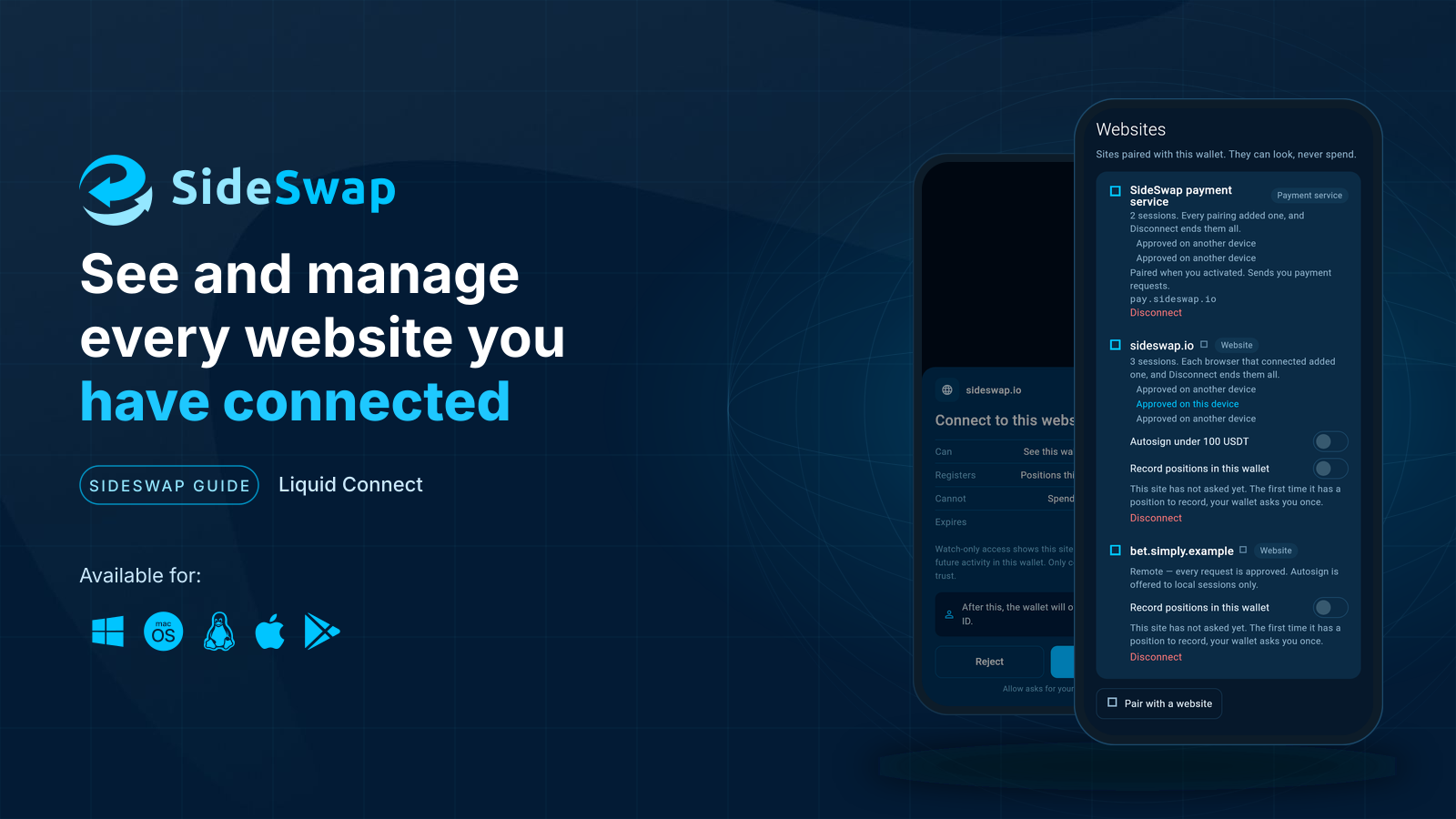
Manage connected websites
See which websites are connected and disconnect any of them.