
At a glance
On your phone
Open History
Tap History at the bottom of the wallet and wait until your transactions have loaded. Export works once they have, and when there is at least one.History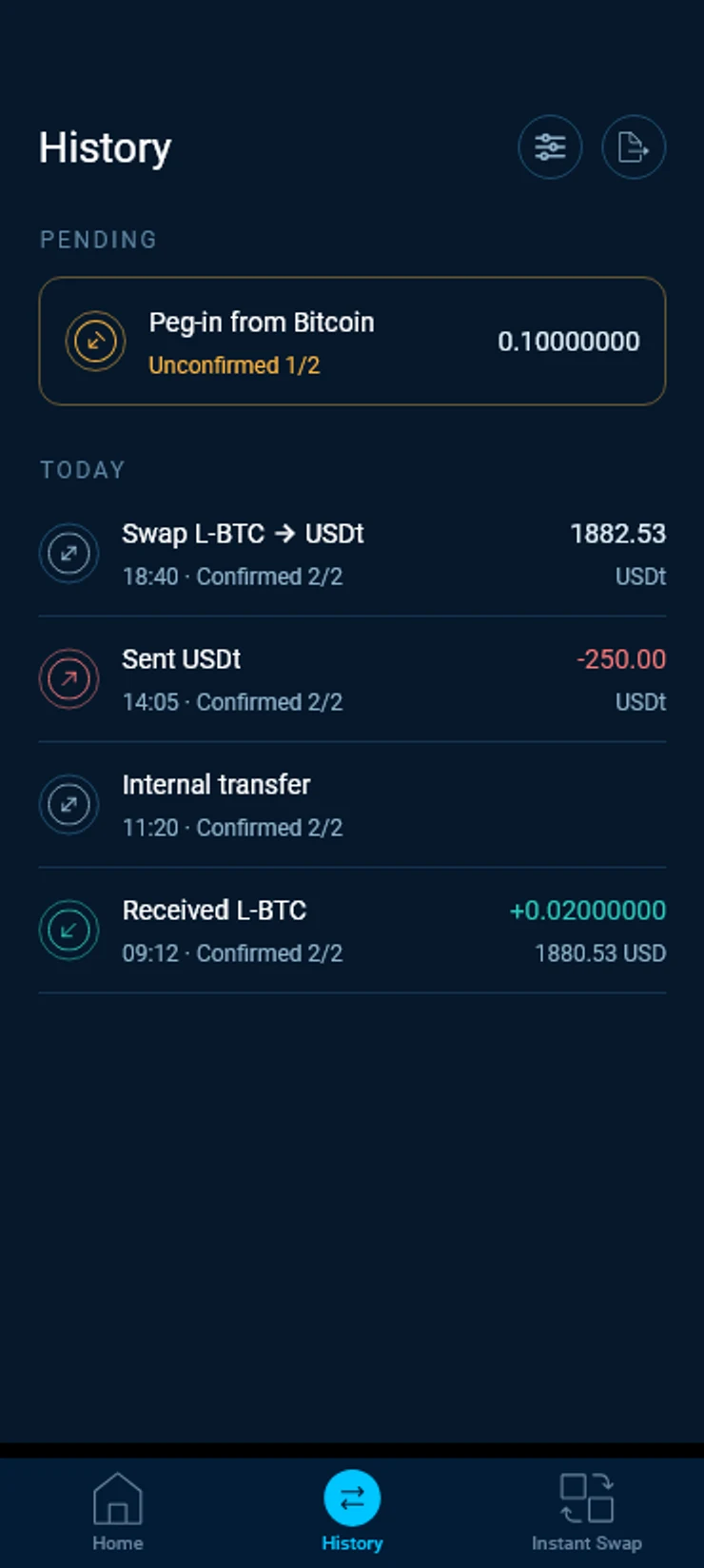
Tap Export
The Export button sits at the top right. Your phone’s share sheet opens with transactions.csv. Save it to your files, or send it to your computer or your accountant.
On your computer
Click Export CSV
In the desktop app, click Export CSV at the top of the wallet overview. The app loads your transactions and says how many it found.Wallet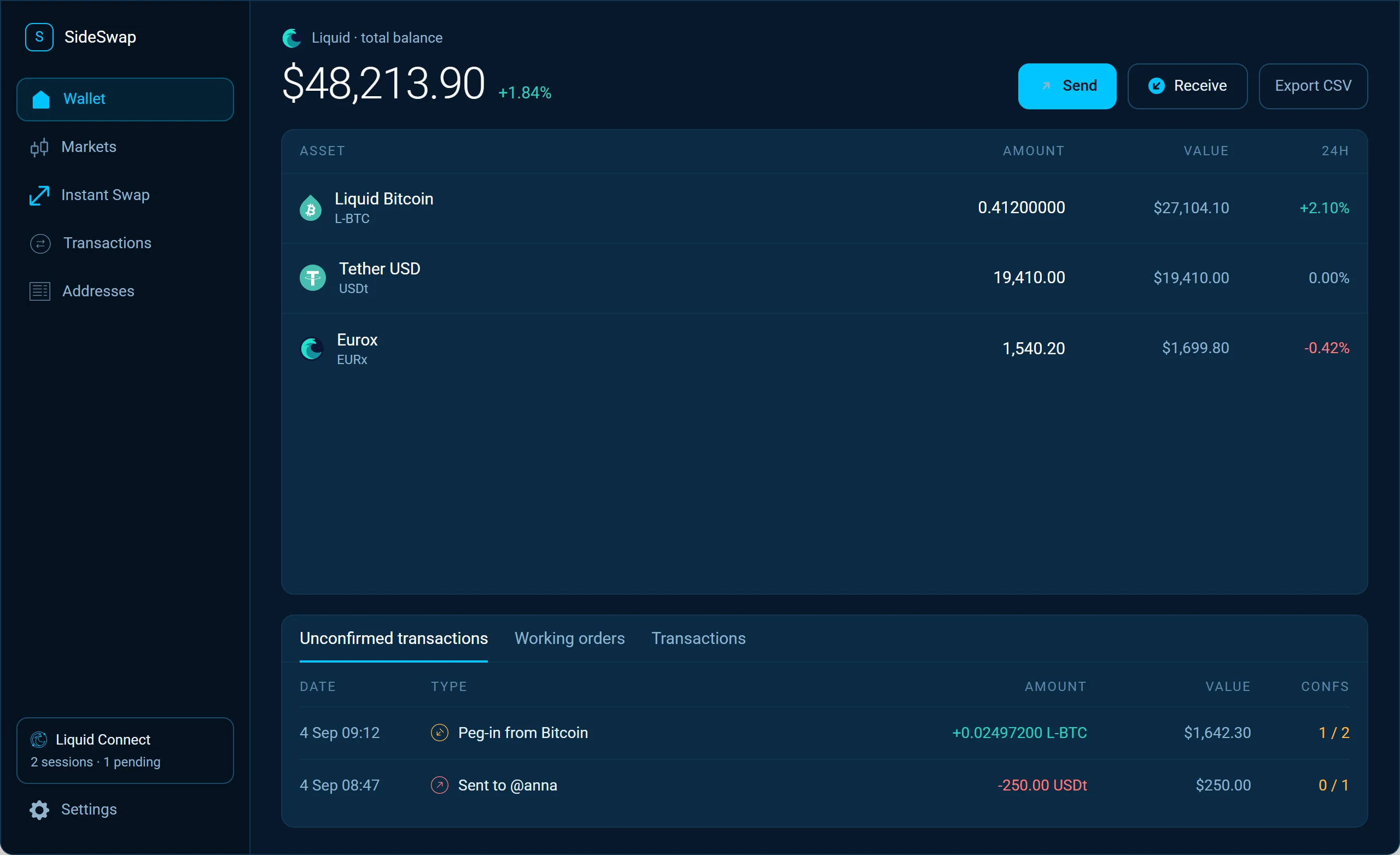
Choose where to save it
Click Export and pick a folder. The app suggests transactions.csv in your Documents folder.
What is in the file
Each row is one transaction. The first five columns are the same in every file, and after them comes one column for each asset your transactions moved, named after the asset.
A swap is one row with two amounts, the asset you gave with a minus and the asset you got without. Amounts carry every decimal place of the asset, for example 0.02000000 for L-BTC.
Good to know
Opening it in a spreadsheet
Any spreadsheet opens the file. Amounts use a full stop as the decimal mark. If your spreadsheet expects a comma, import the file and set the decimal separator to a full stop.
No prices in the file
The file holds amounts, not their value in your currency. Add prices for each date from a source you trust if you need values.
Keep it private
Liquid hides amounts on the chain, and this file shows them next to each transaction ID. Share it only with people who need it.
A transaction is missing
The file holds what History shows. If History keeps loading or a transaction is missing, see Track a transaction or a peg.
Look your transaction up first. If it still looks wrong, write to support with the Bitcoin transaction ID.
Track a transaction or a peg
Find any payment, swap or peg, read its status and check it on the explorer yourself.
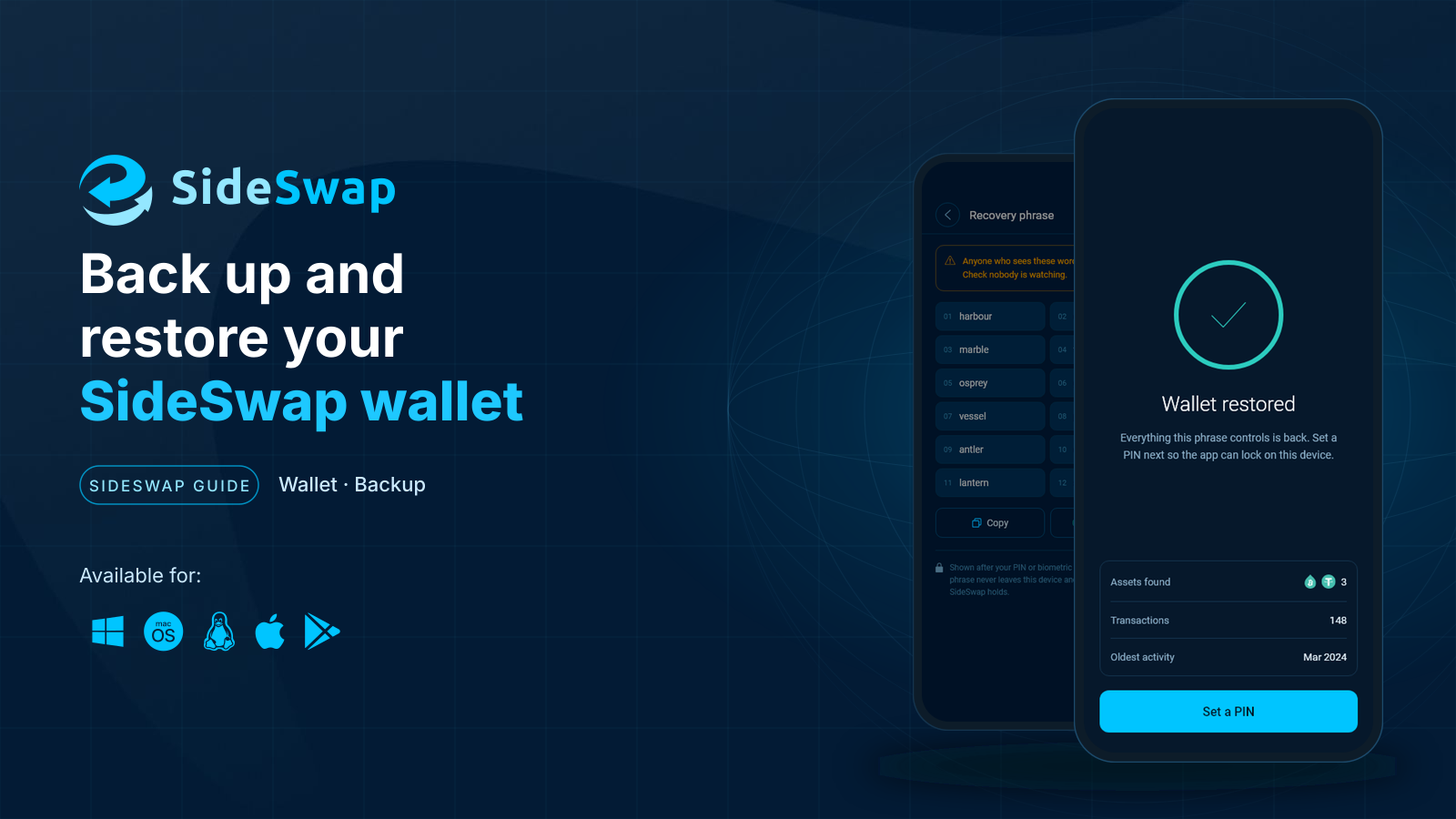
Back up and restore your wallet
Keep your recovery phrase safe, restore on a new device and know what a first scan looks like.
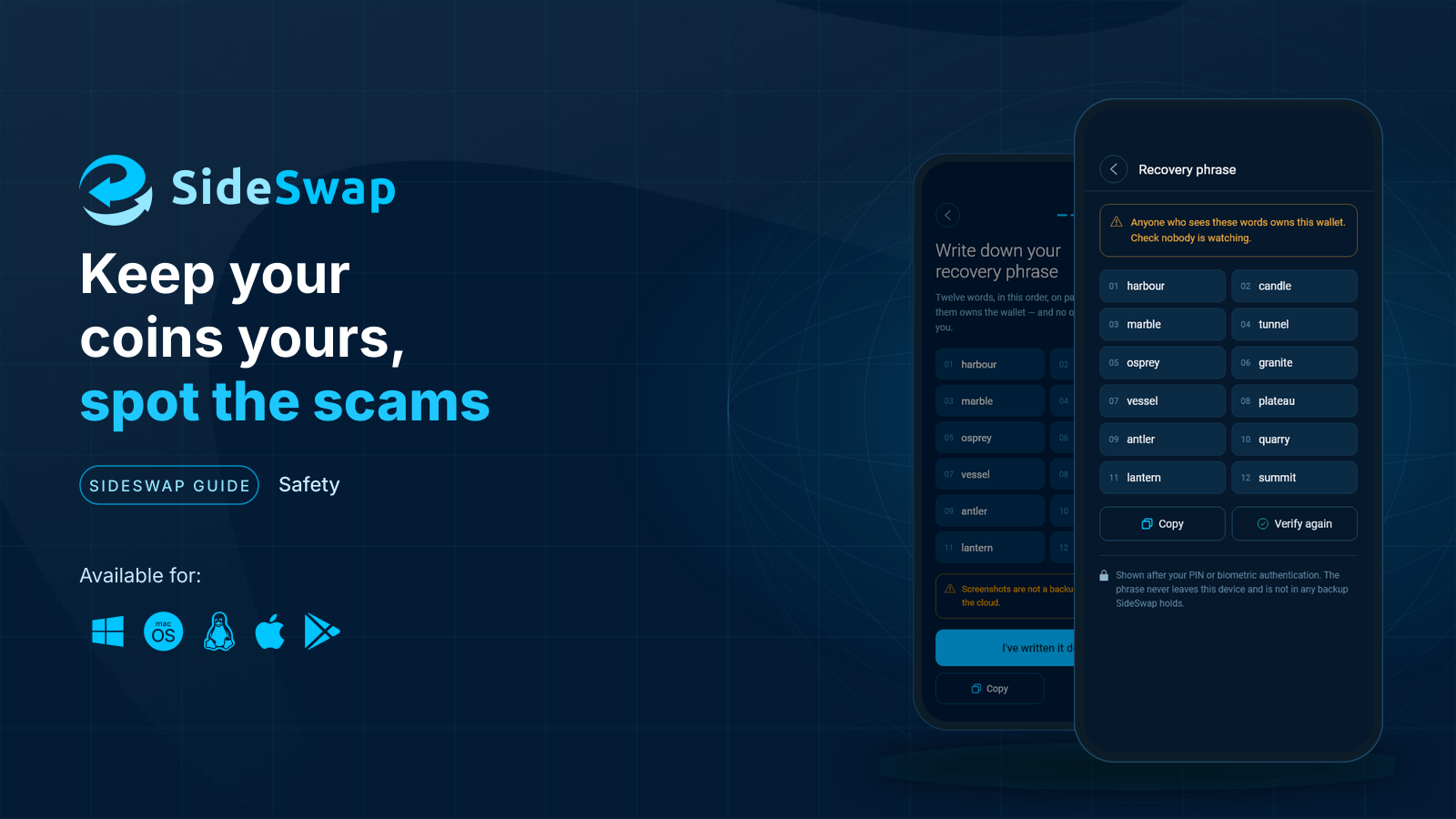
Staying safe
Spot fake support and copycat sites, and why a sent transaction cannot be reversed.