
At a glance
Step by step
Open History
Tap History at the bottom of the wallet. Anything not confirmed yet sits under Pending at the top, and the rest follows by day. Each row says what it was, such as a payment received, a swap or a peg-in, with the time and how many confirmations it has.History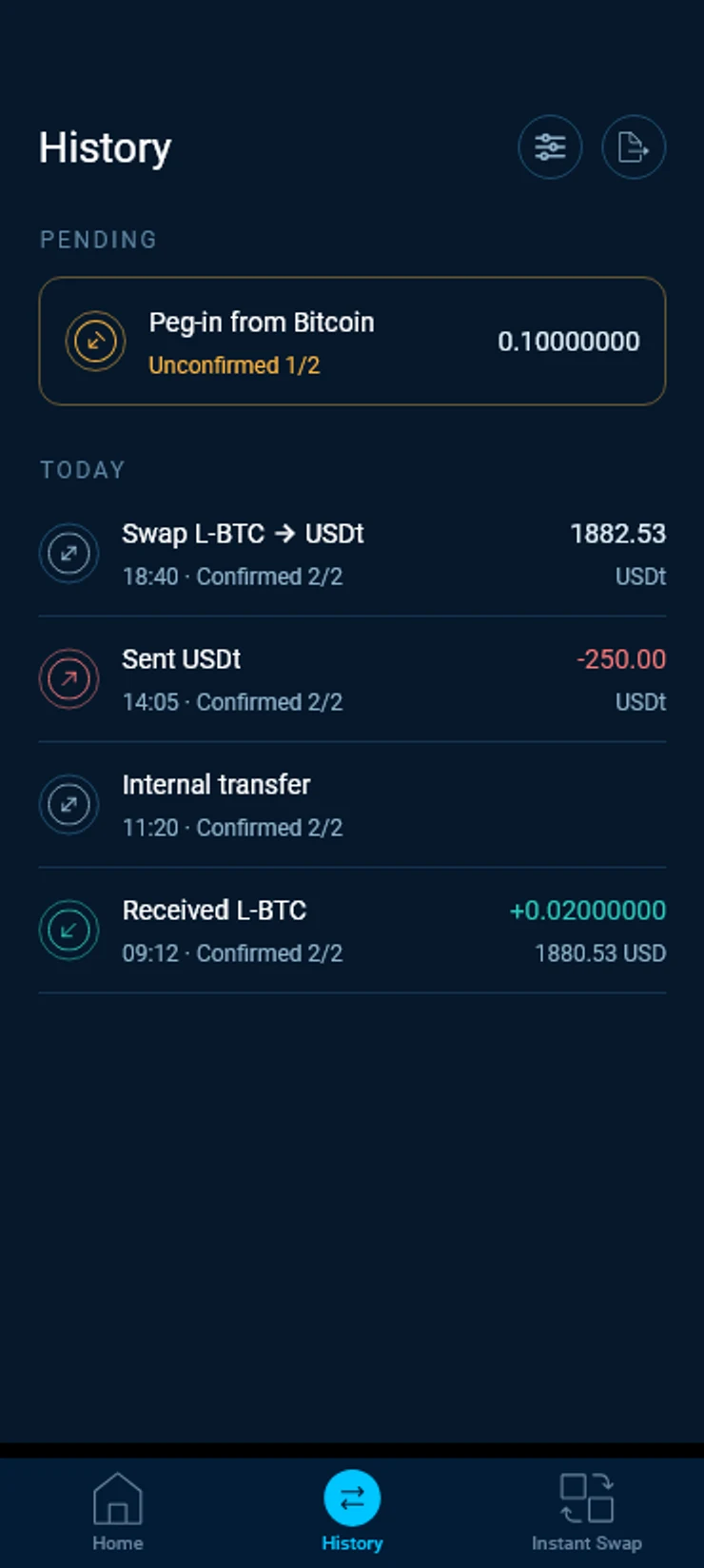
Open a transaction
Tap a row. You see the amount and the status at the top, then the date, the network, the fees, who received what, the transaction ID and a note you can add for yourself.Transaction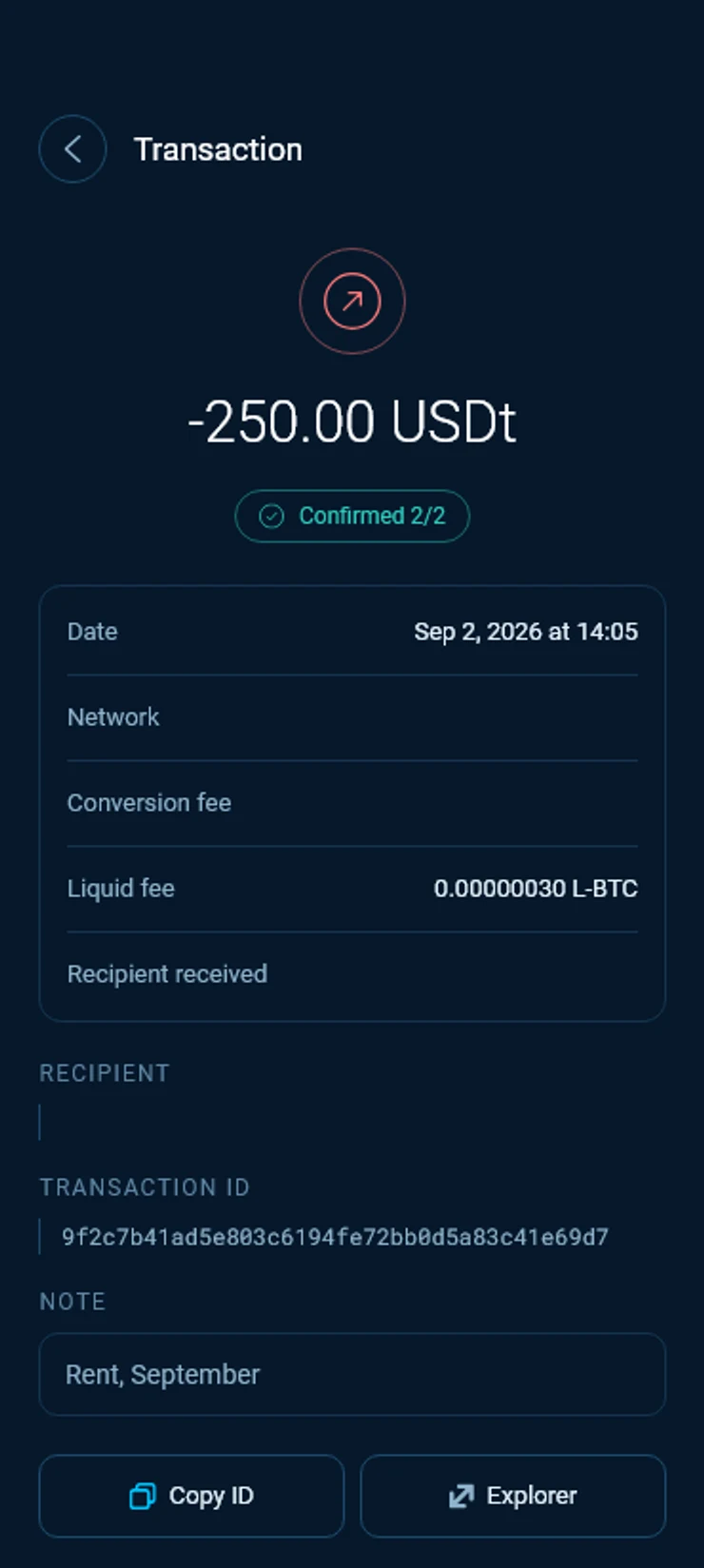
Copy the ID
Copy ID puts the transaction ID on the clipboard. It is what support needs to find a transaction, so send it with any question about one.Open it on the explorer
Explorer opens the transaction on the Blockstream Explorer, outside the app. Choose how you want to see it, described below.
On the explorer
Liquid hides the amounts and assets of every transaction from everyone except the people in it. That is why Explorer asks which view you want.
Share an unblinded link with care
Anyone who opens an unblinded link sees the amounts and assets in it. Share it only with someone who needs to see them.
Pegs
A peg-in shows in History as Peg-in from Bitcoin. It counts the confirmations of your bitcoin deposit, 1/2 and then 2/2. How long that takes is in Move bitcoin to Liquid.
Open it and the transaction ID is your Bitcoin deposit, which any Bitcoin explorer can show. The details also show the BTC peg-in address you sent to. Explorer opens the L-BTC payment to your wallet on Liquid, as soon as it has been made.
A peg made on the sideswap.io peg page has its own tracking page. It shows the status of your order and links both transactions to the explorer. Copy link to this page keeps the address of that page, so you can come back to it later.
Peg-out
Peg-out returns once the new keys are issued and the peg is restored. Updates are posted on sideswap.io/news.
Good to know
History keeps loading
The app is not getting an answer from its server. Switch between WiFi and mobile data, then close and reopen the app. Your history and your coins are not affected.
A transaction is missing and the balance is too low
The wallet has probably not finished scanning. Make sure your recovery phrase is written down, then restore the wallet from it so it scans the chain again. See Back up and restore. After an update, the first scan of a long history can take a few minutes, so keep the app open.
Confirmed means final
A confirmed transaction cannot be reversed, by SideSwap or anyone else. Check the recipient before you send.
Asking support
Send the transaction ID, or the tracking link of a peg made on sideswap.io. Never send your recovery phrase. SideSwap Support will never ask for it.
Look your transaction up first. If it still looks wrong, write to support with the Bitcoin transaction ID.
Move bitcoin to Liquid
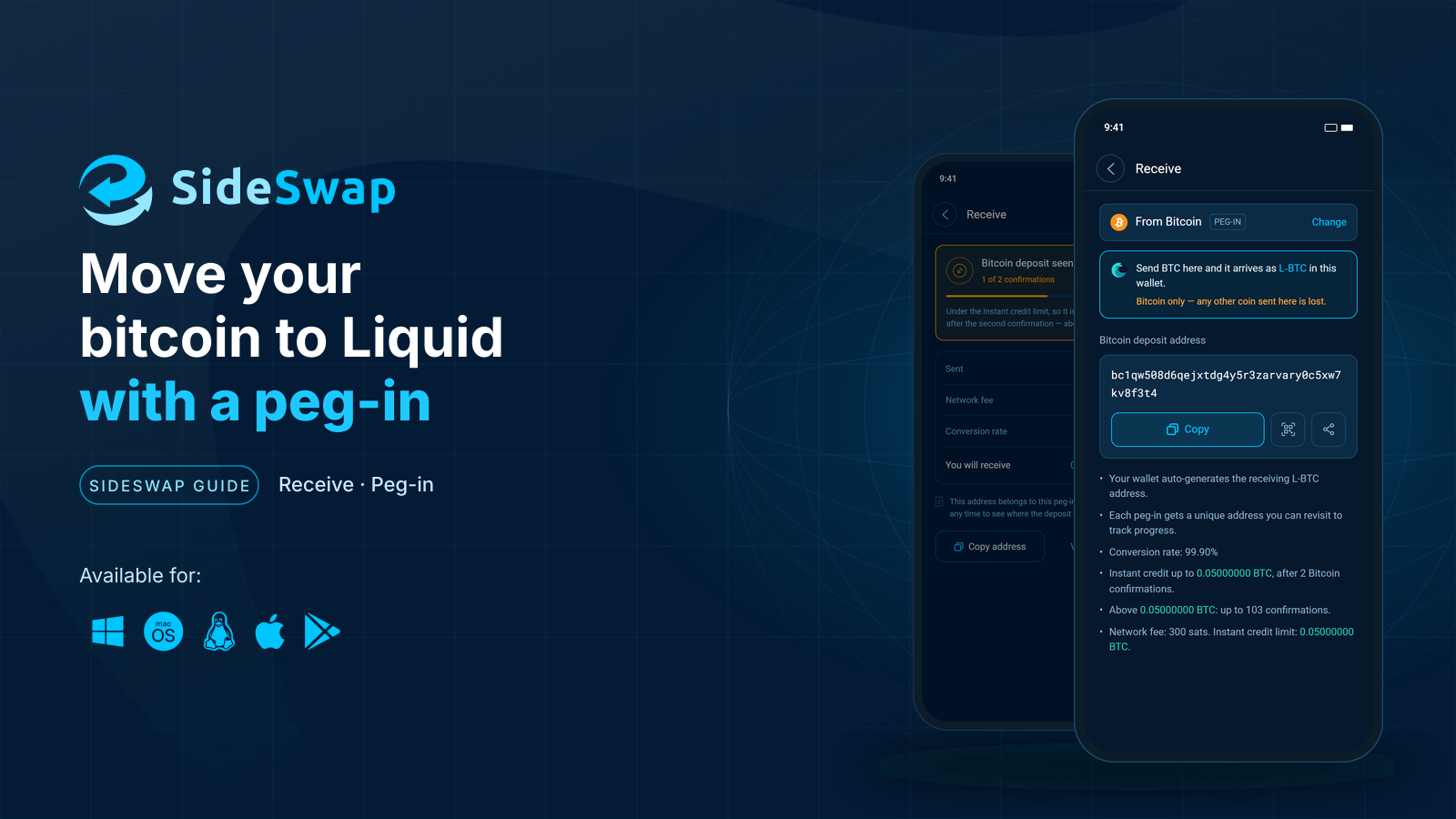
Send BTC to your SideSwap wallet and get L-BTC on Liquid, usually after two Bitcoin confirmations.
Back up and restore your wallet
Keep your recovery phrase safe, restore on a new device and know what a first scan looks like.
Instant Swap
Swap between L-BTC, USDt and other assets in one step at a firm quoted rate.